

Research any company or persona with BitAgent
Try Bitscale Now!
What Bit Agent is
Bit Agent is Bitscale’s AI research enrichment. You give it a simple question, and it searches the public web to find the answer. The key difference is that it also shows the steps it took and the sites it visited, so you can verify where the information came from.When to use it
Use Bit Agent when you want to find a specific data point across:- multiple companies
- multiple people or personas
- multiple rows in a grid
Where to find Bit Agent
- Open your grid
- Go to Enrichments
- Open Web search
- Select Bit Agent
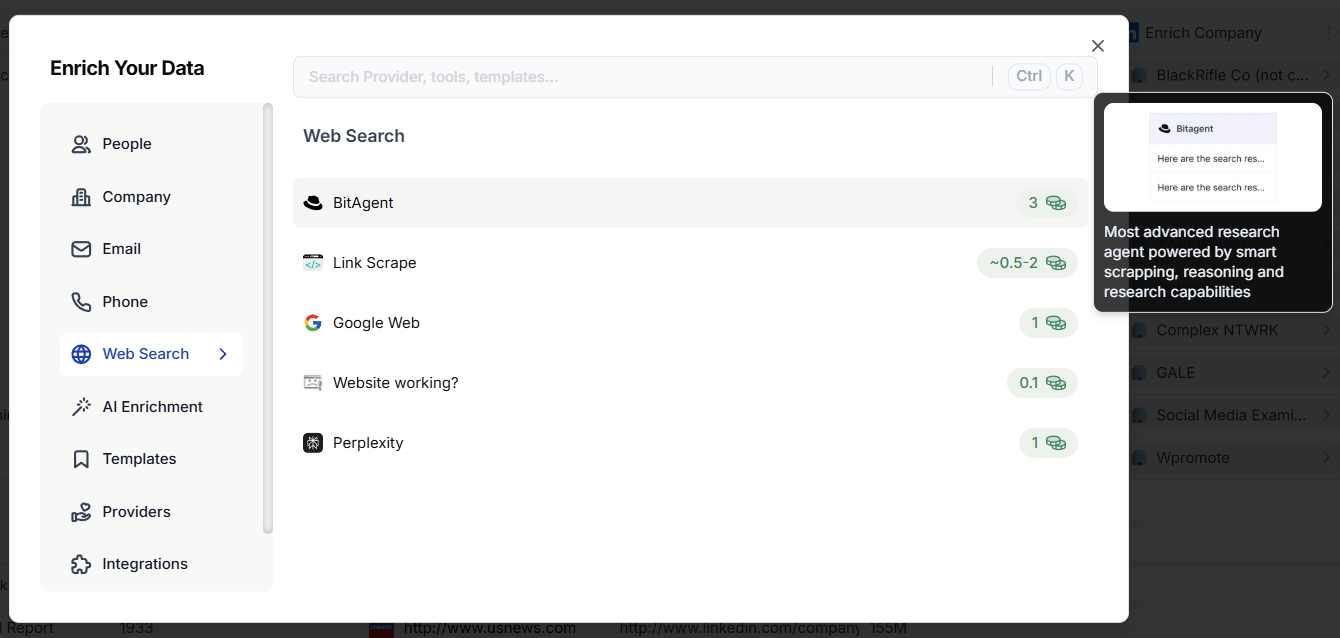
Set up a Bit Agent enrichment
1) Write your ask
This is just the question you want Bit Agent to answer. You can keep it extremely simple. If your grid already has a relevant column, you can use it as a placeholder so the same prompt runs for every row.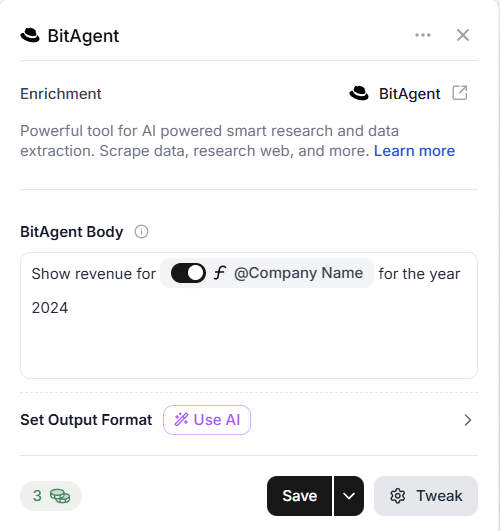
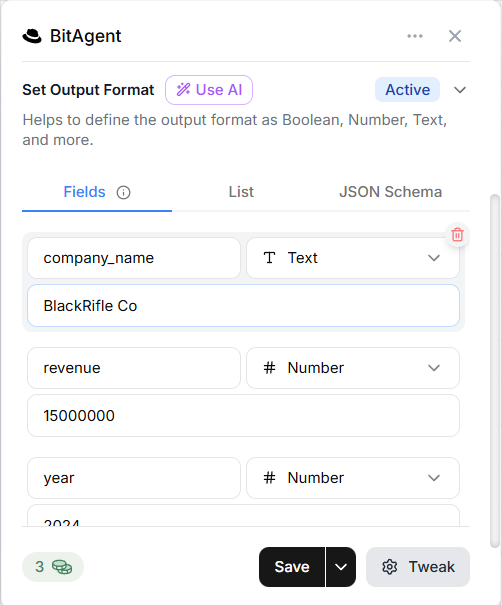
2) Set an output format (recommended)
You can run Bit Agent without an output format, but it is better to define one so your results are structured and easy to use later. To generate an output format quickly:- Click Use AI
- Bitscale suggests the output fields based on your prompt
3) Save and run
- Click Save
- Run it for the desired rows
Verify results using the Steps view
When you open a response, you will see a section called Steps. This shows:- how Bit Agent found the answer
- the sources it visited during research
Use your own model with BYOK (Bring Your Own Key)
If you want to run Bit Agent using your own OpenAI or Claude subscription: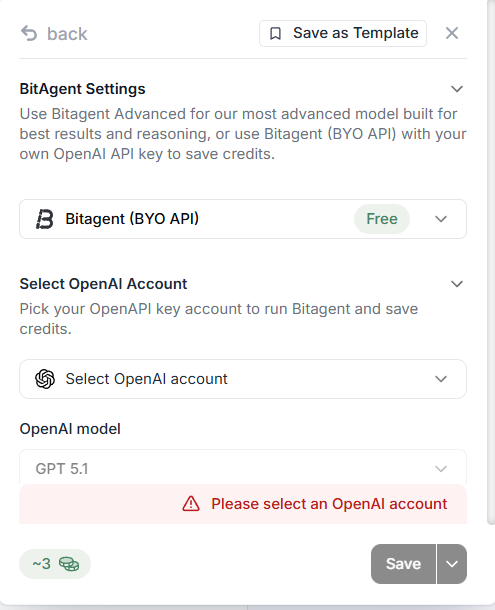
- Go to Bit Agent Advanced
- Click Bit Agent Bring Your Own API
- Select an existing account, or click Add account
- Add and verify your API key
- Choose the model you want to use
Best practices
- Write your ask in one simple sentence
- Use placeholders so the prompt scales across rows
- Always set an output format if you plan to automate anything after this step
- Test on the first 10 rows before running at scale
Keep research structured using BitAgent
Try Bitscale Now!