

Pull HubSpot records for automated workflows on Bitscale
Try Bitscale Now!
What this integration enables
Bitscale has a robust HubSpot integration that lets you:- pull HubSpot companies and contacts into grids
- run complex queries directly from Bitscale
- enrich missing fields (like industry or city)
- push updates back into HubSpot
- automate the whole loop for ongoing CRM cleanup and re-enrichment
Step 1: Connect your HubSpot account
- On Home Page, go to Integrations -> Add integration

- Select HubSpot
- Click Connect HubSpot
- Complete the login on the integration bridge
Step 2: Pull HubSpot data into a grid
Once HubSpot is connected, go to New grid. You will see three HubSpot import options:- Import companies from HubSpot
- Import contacts from HubSpot
- Import HubSpot lists (covered in a separate guide)
Import companies from HubSpot
- Click New grid → Import companies from HubSpot
- Select the HubSpot account
- Build your filters using HubSpot properties
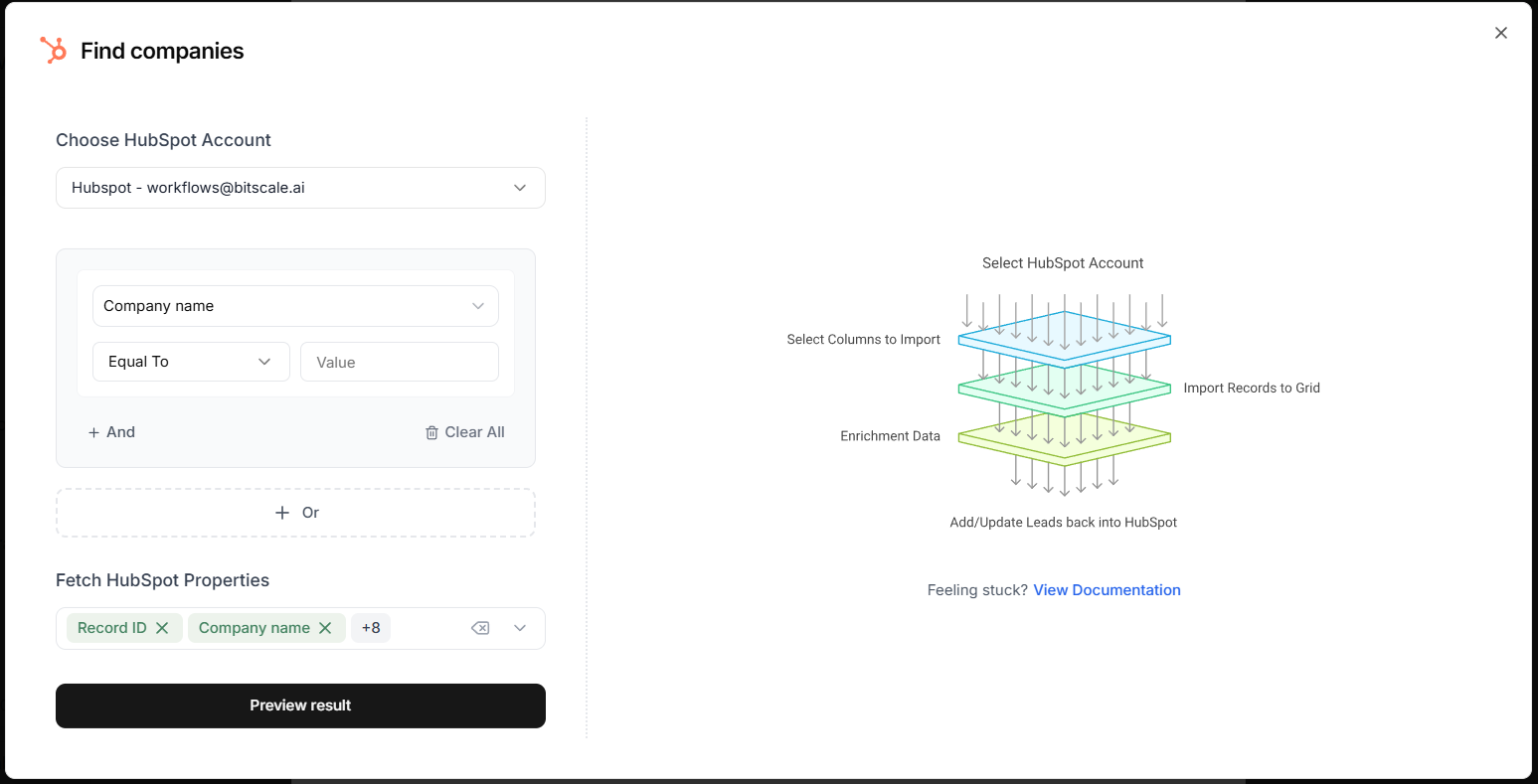 You can create complex queries using:
- AND conditions
- OR conditions
Choose which properties to pull
You can also select which HubSpot properties you want included in the grid.- A preset set of properties is available by default
- You can add more properties if you need them
- Click Preview results
- Click Import to new grid
What you can do next
After importing companies, you can:- route them into a specific workflow (ABM, outbound, enrichment)
- clean CRM fields
- enrich missing values and push them back to HubSpot
Step 3: Look up additional HubSpot fields inside the grid
Sometimes you may want to fetch a property you did not pull initially, or you want data from related objects. For that, use HubSpot lookup inside the grid:- Go to Enrichment -> Integrations
- Select HubSpot Lookup Object
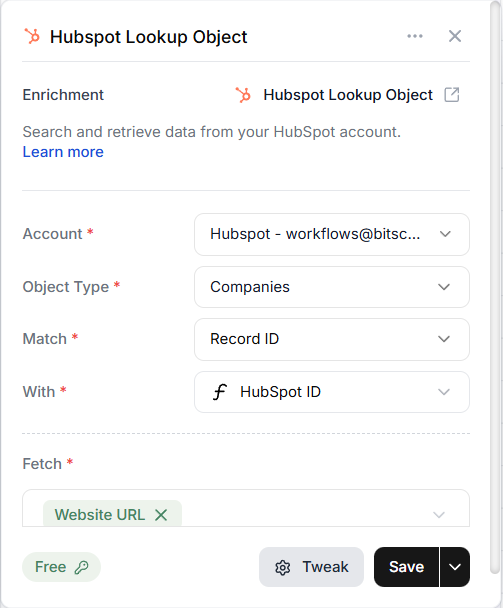 Then:
Then:
- Select your HubSpot account
- Choose the Object type (example: Companies)
- Match:
- the grid’s record ID column
- with the HubSpot ID column in the grid
- Select the property you want to fetch
- Save and run
Step 4: Enrich missing data and update HubSpot
If you notice missing fields in HubSpot (example: industry, city), you can enrich them in Bitscale and push them back.1) Enrich the missing value in Bitscale
- Go to Enrichments
- Use a company enrichment (example: basic Enrich Company)
- Run it for a test row (or the full grid once you are confident)
2) Push the update back to HubSpot
- Go to Enrichments → Integrations
- Select the HubSpot enrichment (not the lookup)

- Configure:
- Record type: Company
- Action: Update record
- Unique identifier: Record ID (or company domain)
- Click Map fields
- Map the HubSpot field (example: Industry) to the enriched column value
- Save and run
Automate this for continuous CRM cleanup
Once the workflow is working end-to-end, you can automate it:- Auto-fetch records from HubSpot in Load data
- Set up auto dedup so the same accounts are not processed repeatedly
- Enable auto run so new records automatically get enriched and updated
Contact-level workflow is identical
For contacts, the steps are the same:- Go to New grid → Import contacts from HubSpot
- Query using HubSpot properties
- Import to grid
- Use:
- HubSpot lookup enrichment to fetch missing fields
- HubSpot enrichment to add or update records
Automate HubSpot enrichments easily
Try Bitscale Now!