

Use HubSpot lists as a live feeder for enrichment and outbound workflows
Try Bitscale Now!
What this lets you do
If your team uses HubSpot Lists heavily, you can pull those list records into Bitscale and use the list as the starting point for workflows like:- CRM re-enrichment
- list-based outbound automation
- cadences or routing workflows powered by HubSpot filters
Prerequisite
You need to have your HubSpot account connected in Bitscale before you can import a list.Import a HubSpot list into a new grid
- Click New grid
- Select Import records from HubSpot lists
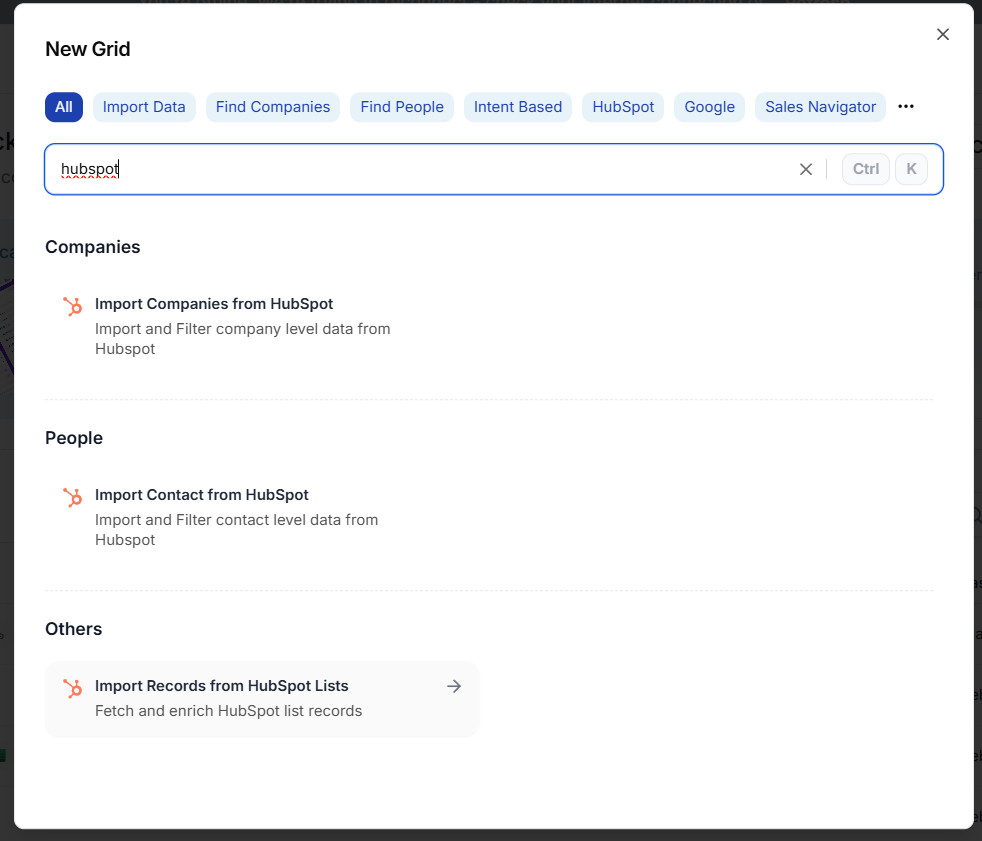
- Click Select account and choose your connected HubSpot account
- Select the HubSpot list you want to pull from
- Click Import to new grid
- the list records
- the HubSpot record IDs
Why Bitscale does not pull every HubSpot field automatically
Bitscale only pulls the records and their IDs first. This is intentional because different teams want different fields, and you may only need a small subset for your workflow. The next step is to choose exactly what properties you want to fetch.Pull specific HubSpot fields using the record ID
- Open the new grid
- Go to Enrichments
- Open Integrations from side menu
- Choose the HubSpot lookup enrichment
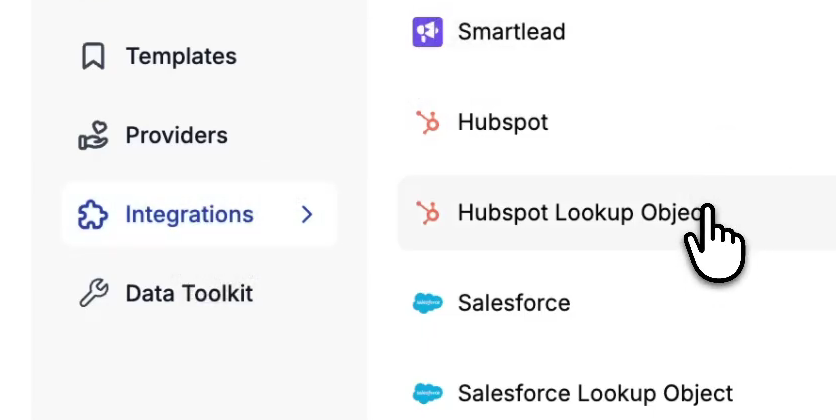
- Select the same HubSpot account
- Set the correct Object type
- example: Companies (if your list is company-level)
- Match:
- the Record ID in your grid
- with the HubSpot ID field pulled in from the list
- Choose the property you want to fetch
- example: Website URL
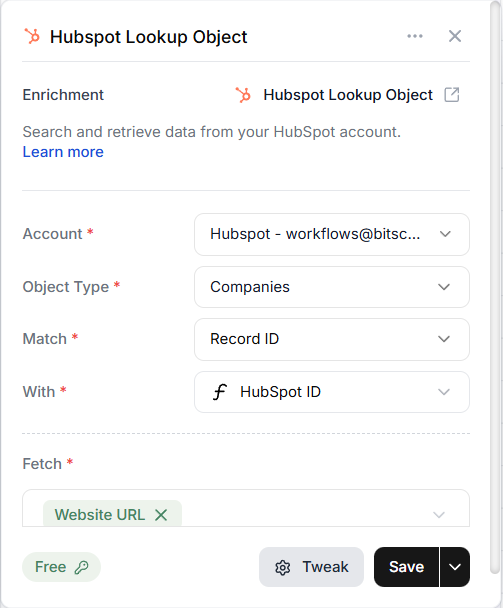
- Save
- Run it for all rows
What to do next
Once your list records are in the grid and your required properties are pulled in, you can add the rest of your workflow steps, like:- enrich contacts or companies
- qualify records
- trigger outbound actions
- sync data back to HubSpot or other tools
Common use cases
HubSpot re-enrichment powered by lists
Keep a HubSpot list as the source of truth, and run enrichment workflows from it whenever needed.Automated outbound using a list as the feeder
If your outbound targeting is defined by HubSpot list filters, just update the list and Bitscale will process the right records.Simple way to enroll new records into a workflow
To send a company or contact through the workflow, add them to the HubSpot list or update the list filter so they qualify.Connect your Hubspot and begin right away
Try Bitscale Now!