

Turn your grid into a workflow you can run anytime
Try Bitscale Now!
What this does
Bitscale lets you pull leads from LinkedIn Sales Navigator by using your Sales Nav search URL. You run a search in Sales Navigator, copy the URL, paste it into Bitscale, and Bitscale imports the matching people into a grid.Before you start
Use only general filters in Sales Navigator
Some Sales Navigator filters are tied to your personal account and do not work reliably when shared through a URL. Avoid filters like:- connection tier
- exclusion lists
- other account-specific filters
- geography
- industry
- title
- company size
- seniority
Step 1: Create your Sales Navigator search
- Open LinkedIn Sales Navigator
- Set the filters you want
- Once the results look right, copy the URL from the top browser search bar
Step 2: Import the URL into Bitscale
- In Bitscale, create a new grid (or open an existing one where you want to add a new data source)
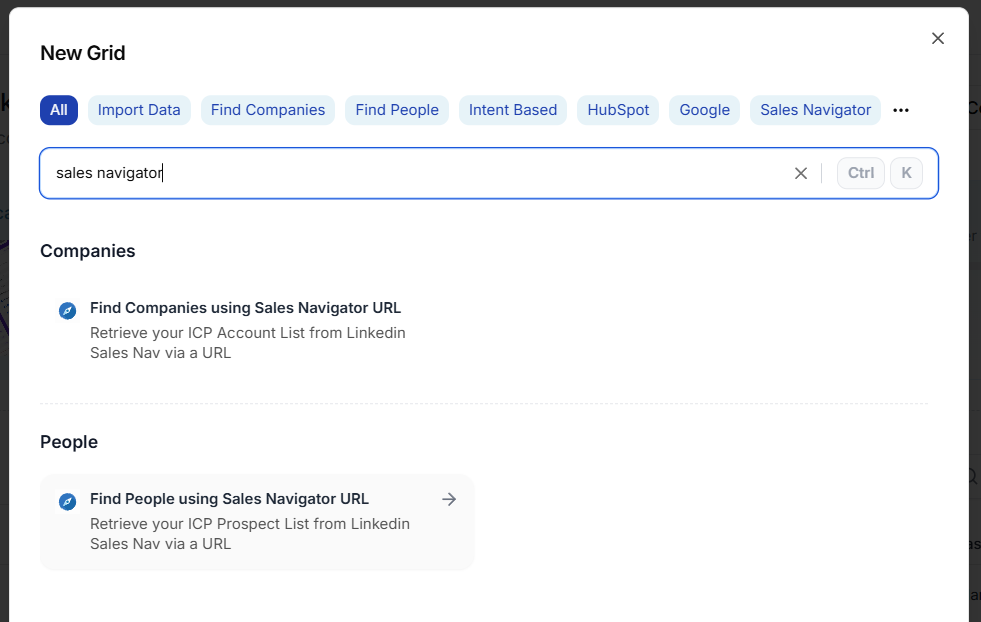
- Choose the option to Find people using the Sales Navigator URL
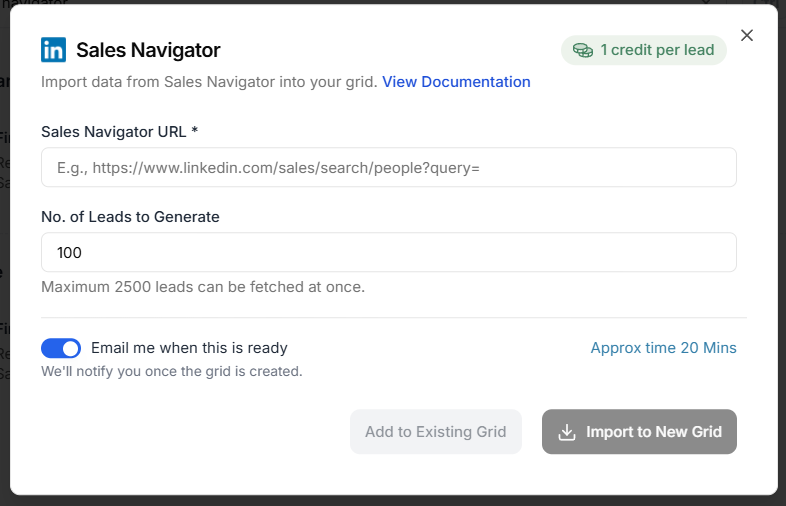
- Paste the Sales Nav URL
- Click Import records
 While the import runs, you will see a Processing tag.
Once it completes, your leads will be available in the grid for enrichment and workflow steps.
While the import runs, you will see a Processing tag.
Once it completes, your leads will be available in the grid for enrichment and workflow steps.
What to do next
After leads are inside the grid, you can:- enrich emails and phone numbers
- run research enrichments
- qualify against your ICP
- push to your CRM or outbound tools
Use Sales Nav as your lead source, let Bitscale handle enrichments
Try Bitscale Now!