> ## Documentation Index
> Fetch the complete documentation index at: https://docs.bitscale.ai/llms.txt
> Use this file to discover all available pages before exploring further.
# Import Sales Navigator Leads Using a Search URL
Try Bitscale Now!
## What this does
Bitscale lets you pull leads from LinkedIn Sales Navigator by using your Sales Nav search URL.
You run a search in Sales Navigator, copy the URL, paste it into Bitscale, and Bitscale imports the matching people into a grid.
## Before you start
### Use only general filters in Sales Navigator (for this URL-only workflow)
This page covers the lightweight path: pasting a Sales Nav search URL directly, with no account connected. For that path, stick to filters that are broadly replicable, like:
* geography
* industry
* title
* company size
* seniority
Avoid pasting URLs built with filters tied to your personal account, like:
* connection tier
* exclusion lists
* saved searches
This keeps the URL clean and prevents imports from breaking.
**Want to use those account-specific filters or saved searches?** Connect your own Sales Navigator seat instead. See [Connect LinkedIn Sales Navigator](/list/connect-sales-navigator) for the account-connected workflow, which supports saved searches, connection tier, and exclusion lists.
## Step 1: Create your Sales Navigator search
1. Open LinkedIn Sales Navigator
2. Set the filters you want
3. Once the results look right, copy the URL from the top browser search bar
That URL is the input Bitscale needs.
## Step 2: Import the URL into Bitscale
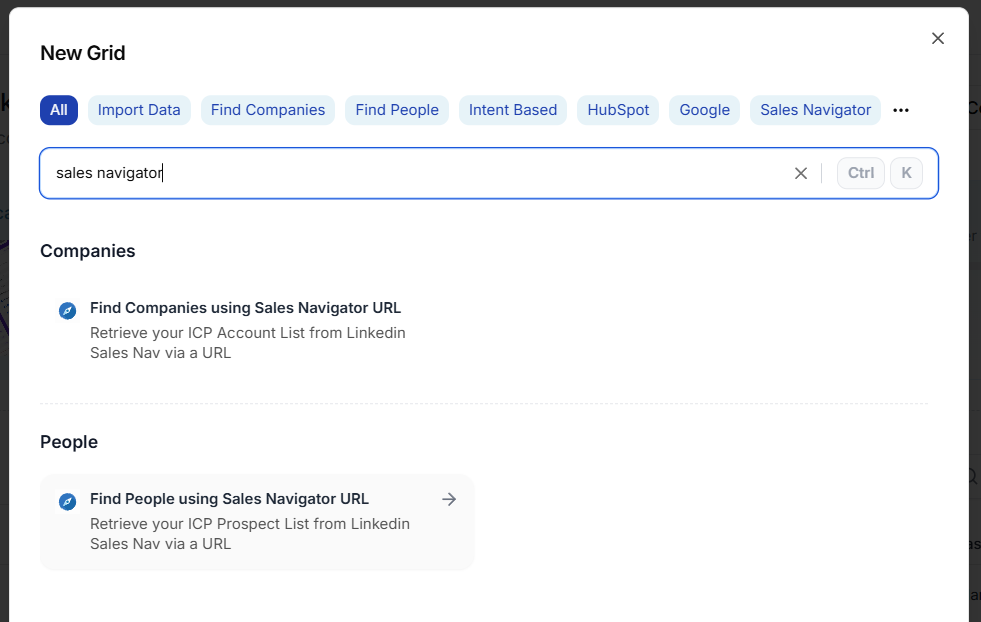
1. In Bitscale, create a new grid (or open an existing one where you want to add a new data source)
2. Choose the option to **Find people using the Sales Navigator URL**
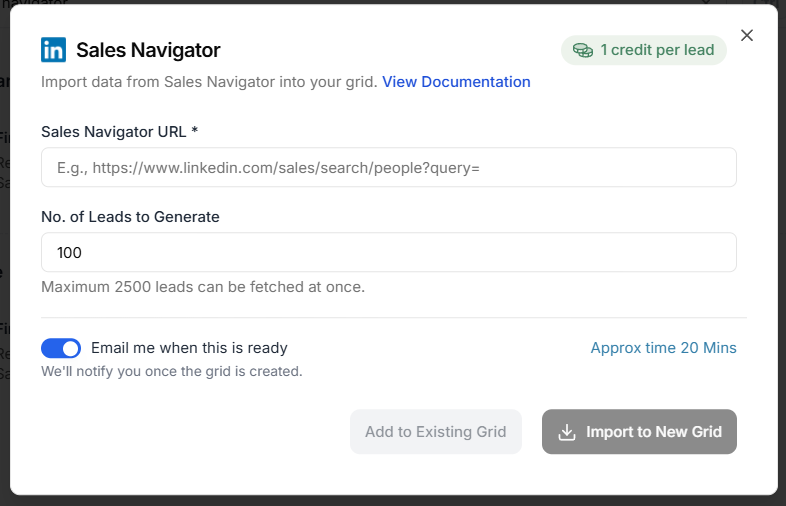
3. Paste the Sales Nav URL
4. Click **Import records**
While the import runs, you will see a **Processing** tag.
Once it completes, your leads will be available in the grid for enrichment and workflow steps.
## What to do next
After leads are inside the grid, you can:
* enrich emails and phone numbers
* run research enrichments
* qualify against your ICP
* push to your CRM or outbound tools
Try Bitscale Now!
## Need help?
If you have questions about which filters to use or your import is stuck on processing, reach out on the support channel.
 3. Paste the Sales Nav URL
4. Click **Import records**
3. Paste the Sales Nav URL
4. Click **Import records**
 While the import runs, you will see a **Processing** tag.
Once it completes, your leads will be available in the grid for enrichment and workflow steps.
## What to do next
After leads are inside the grid, you can:
* enrich emails and phone numbers
* run research enrichments
* qualify against your ICP
* push to your CRM or outbound tools
While the import runs, you will see a **Processing** tag.
Once it completes, your leads will be available in the grid for enrichment and workflow steps.
## What to do next
After leads are inside the grid, you can:
* enrich emails and phone numbers
* run research enrichments
* qualify against your ICP
* push to your CRM or outbound tools