> ## Documentation Index
> Fetch the complete documentation index at: https://docs.bitscale.ai/llms.txt
> Use this file to discover all available pages before exploring further.
# Find Companies and Build Your ICP List
Try Bitscale Now!
## What this workflow is for
Most list building starts with one thing: finding the right companies.
Bitscale makes this easy by letting you:
* search for companies using ICP filters
* import results into a grid
* enrich those companies
* fetch more records in batches once your workflow looks right
## Step 1: Open Find Companies
1. On the top of the platform, click **Find companies**
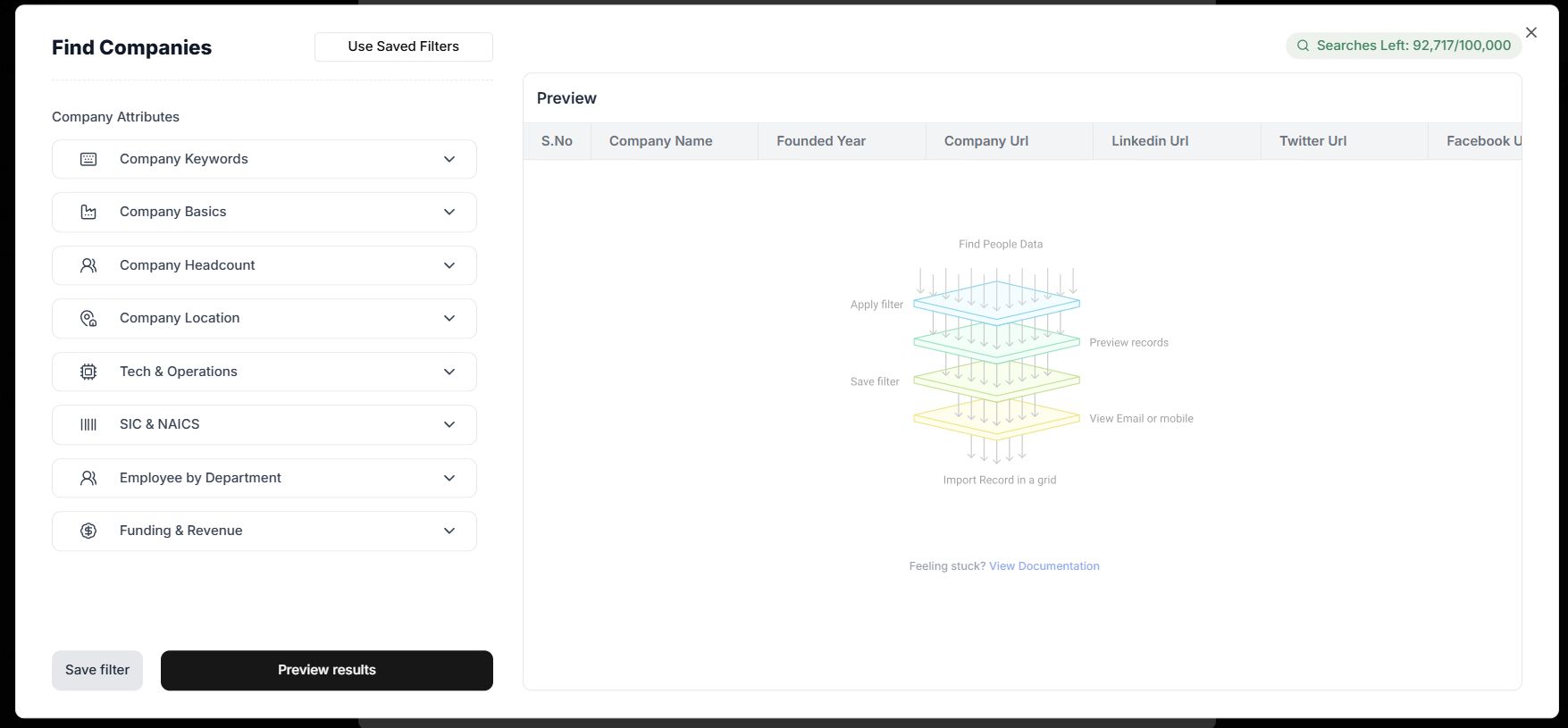
2. You will see multiple filters to narrow down your ICP
## Step 2: Apply ICP filters
You can mix and match filters depending on how specific you want your search to be.
Common filters include:
### Company keywords
Use this when you are targeting a niche category.
### Company basics
Filter by:
* industry
* business sector
### Size and location
Filter by:
* company headcount
* company location
### Technology
Filter by the tools or technologies a company uses.
### Classification codes
Filter by:
* SIC code
* NAICS code
### Department headcount
This is useful when you care about team composition.
Example: if you sell to sales teams, filter for companies with a larger sales department.
### Funding and revenue
Use this when revenue stage or funding stage matters for your ICP.
## Step 3: View results and import to a grid
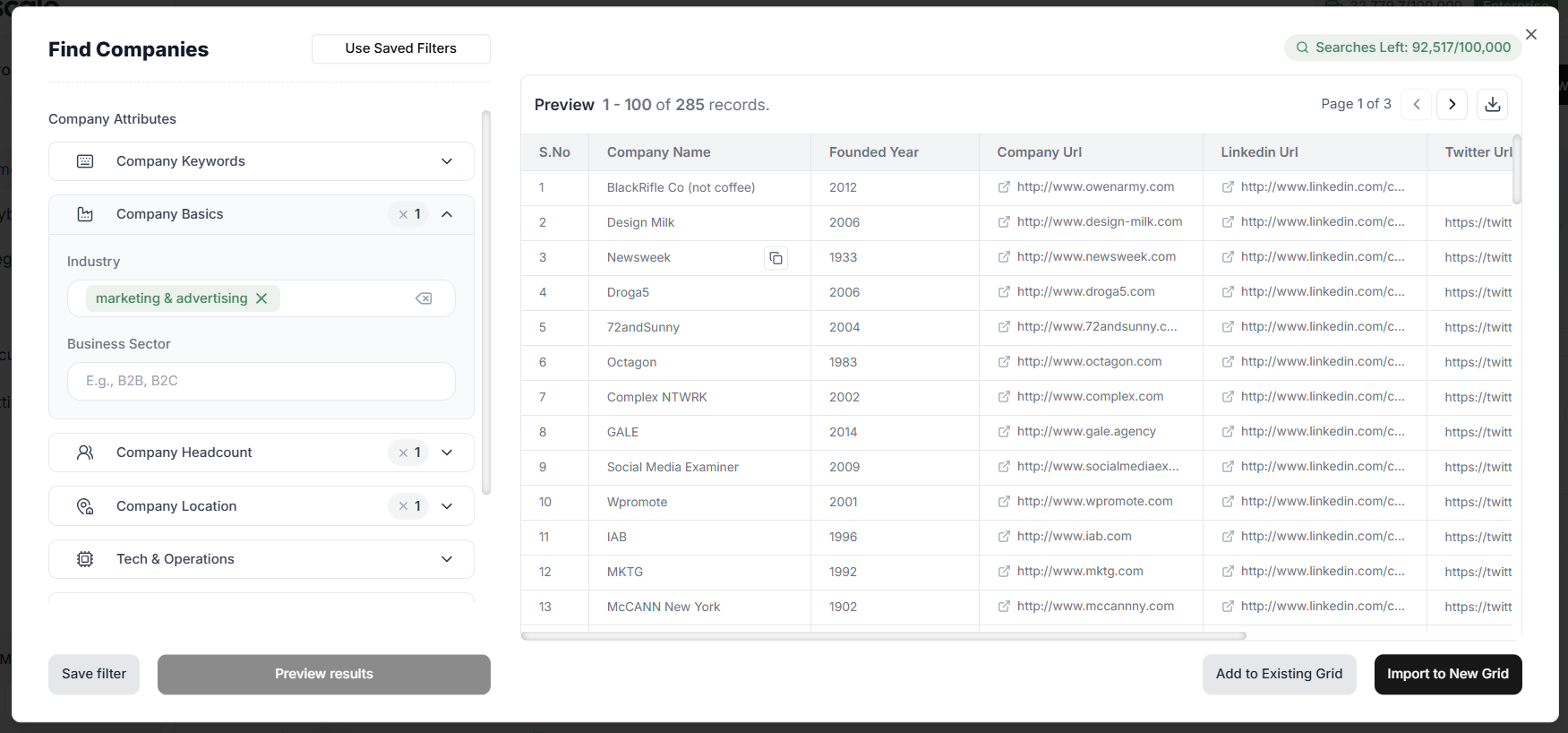
1. Click **View results**
2. Review the companies
3. Click **Import to new grid**
If you only need a quick export, you can use the **Download** button to export the first 100 records.
## Step 4: Enrich the companies
Once the companies are in your grid, the next step is usually enrichment.
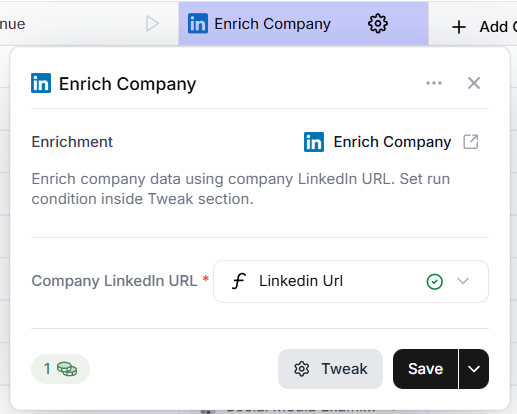
Bitscale includes an **Enriched company** enrichment that pulls additional company information (like what is available on LinkedIn).
1. Confirm the enrichment is mapped correctly
2. Run it to populate more fields for the companies
## Why the first import is limited to 100 rows
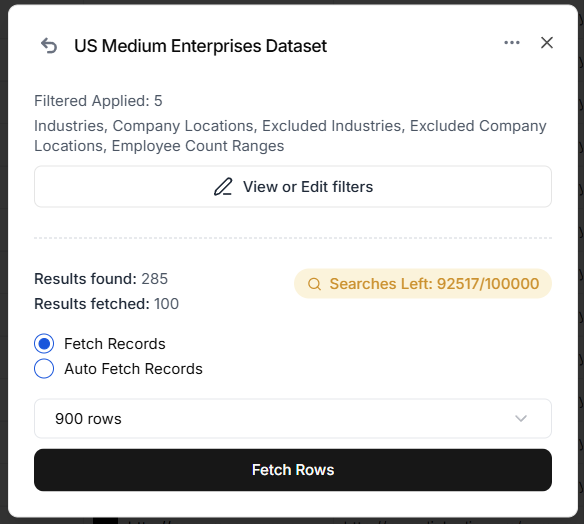
By default, Bitscale brings in the first 100 companies.
This is intentional.
It helps you:
* set up your workflow safely
* test the enrichments
* catch mapping issues early
* avoid burning credits on a large batch before you are confident
Once the workflow is working, you can pull more companies.
## Fetch more records in batches
After you are comfortable with your workflow:
1. Go to **Load data**
2. Click the company filter/source you created
3. Fetch more records in batches (example: 1,000 at a time)
4. Repeat until you run out of search credits or results
## Optional: Set up auto-fetch
If you want a steady flow of companies (example: 100 per week), you can set up auto-fetch and process smaller batches on a schedule.
## Edit or review your filters later
If you ever forget what filters you used:
1. Go to **Load data**
2. Open the saved filter/source
3. View or edit the filters anytime
Try Bitscale Now!
## Need help?
If you have questions about choosing filters, fetching in batches, or setting up enrichments, reach out on the community channel.
 ## Step 2: Apply ICP filters
You can mix and match filters depending on how specific you want your search to be.
Common filters include:
### Company keywords
Use this when you are targeting a niche category.
### Company basics
Filter by:
* industry
* business sector
### Size and location
Filter by:
* company headcount
* company location
### Technology
Filter by the tools or technologies a company uses.
### Classification codes
Filter by:
* SIC code
* NAICS code
### Department headcount
This is useful when you care about team composition.
Example: if you sell to sales teams, filter for companies with a larger sales department.
### Funding and revenue
Use this when revenue stage or funding stage matters for your ICP.
## Step 3: View results and import to a grid
## Step 2: Apply ICP filters
You can mix and match filters depending on how specific you want your search to be.
Common filters include:
### Company keywords
Use this when you are targeting a niche category.
### Company basics
Filter by:
* industry
* business sector
### Size and location
Filter by:
* company headcount
* company location
### Technology
Filter by the tools or technologies a company uses.
### Classification codes
Filter by:
* SIC code
* NAICS code
### Department headcount
This is useful when you care about team composition.
Example: if you sell to sales teams, filter for companies with a larger sales department.
### Funding and revenue
Use this when revenue stage or funding stage matters for your ICP.
## Step 3: View results and import to a grid
 1. Click **View results**
2. Review the companies
3. Click **Import to new grid**
If you only need a quick export, you can use the **Download** button to export the first 100 records.
## Step 4: Enrich the companies
Once the companies are in your grid, the next step is usually enrichment.
Bitscale includes an **Enriched company** enrichment that pulls additional company information (like what is available on LinkedIn).
1. Confirm the enrichment is mapped correctly
2. Run it to populate more fields for the companies
1. Click **View results**
2. Review the companies
3. Click **Import to new grid**
If you only need a quick export, you can use the **Download** button to export the first 100 records.
## Step 4: Enrich the companies
Once the companies are in your grid, the next step is usually enrichment.
Bitscale includes an **Enriched company** enrichment that pulls additional company information (like what is available on LinkedIn).
1. Confirm the enrichment is mapped correctly
2. Run it to populate more fields for the companies
 ## Why the first import is limited to 100 rows
By default, Bitscale brings in the first 100 companies.
This is intentional.
It helps you:
* set up your workflow safely
* test the enrichments
* catch mapping issues early
* avoid burning credits on a large batch before you are confident
Once the workflow is working, you can pull more companies.
## Fetch more records in batches
After you are comfortable with your workflow:
1. Go to **Load data**
2. Click the company filter/source you created
3. Fetch more records in batches (example: 1,000 at a time)
4. Repeat until you run out of search credits or results
## Why the first import is limited to 100 rows
By default, Bitscale brings in the first 100 companies.
This is intentional.
It helps you:
* set up your workflow safely
* test the enrichments
* catch mapping issues early
* avoid burning credits on a large batch before you are confident
Once the workflow is working, you can pull more companies.
## Fetch more records in batches
After you are comfortable with your workflow:
1. Go to **Load data**
2. Click the company filter/source you created
3. Fetch more records in batches (example: 1,000 at a time)
4. Repeat until you run out of search credits or results
 ## Optional: Set up auto-fetch
If you want a steady flow of companies (example: 100 per week), you can set up auto-fetch and process smaller batches on a schedule.
## Edit or review your filters later
If you ever forget what filters you used:
1. Go to **Load data**
2. Open the saved filter/source
3. View or edit the filters anytime
## Optional: Set up auto-fetch
If you want a steady flow of companies (example: 100 per week), you can set up auto-fetch and process smaller batches on a schedule.
## Edit or review your filters later
If you ever forget what filters you used:
1. Go to **Load data**
2. Open the saved filter/source
3. View or edit the filters anytime