> ## Documentation Index
> Fetch the complete documentation index at: https://docs.bitscale.ai/llms.txt
> Use this file to discover all available pages before exploring further.
# Import Data into Bitscale Using Webhooks
Try Bitscale Now!
## Use of Webhooks in a grid
Webhooks let you push data from:
* other platforms (alerts, outbound tools, form submissions)
* your internal systems
* any workflow that can send an HTTP request
Once the data lands in Bitscale, you can:
* enrich it
* run automations
* use Bitscale as a middle layer in a larger workflow
## Create a grid with a webhook as the data source
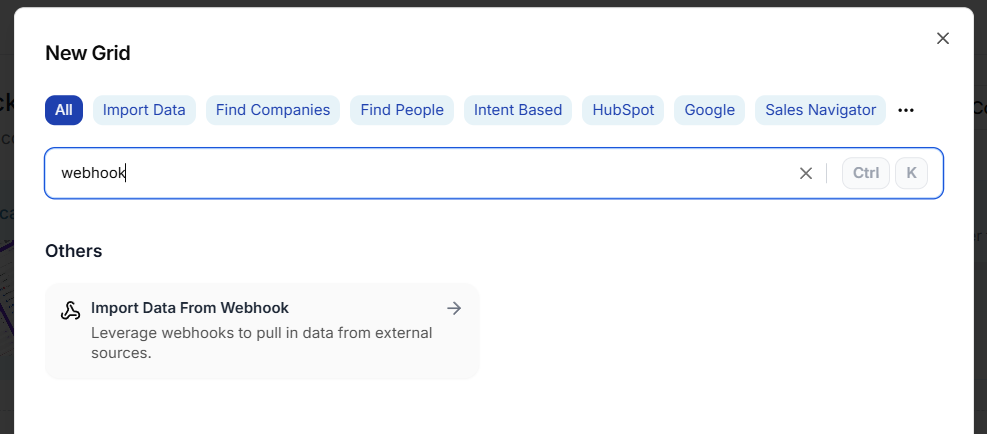
1. Click **New grid**
2. Select **Import data from Webhook**
3. Click **Create new grid**
This creates a grid where incoming webhook payloads become rows you can work with.
## Find your webhook URL and cURL request
1. Open the grid you just created
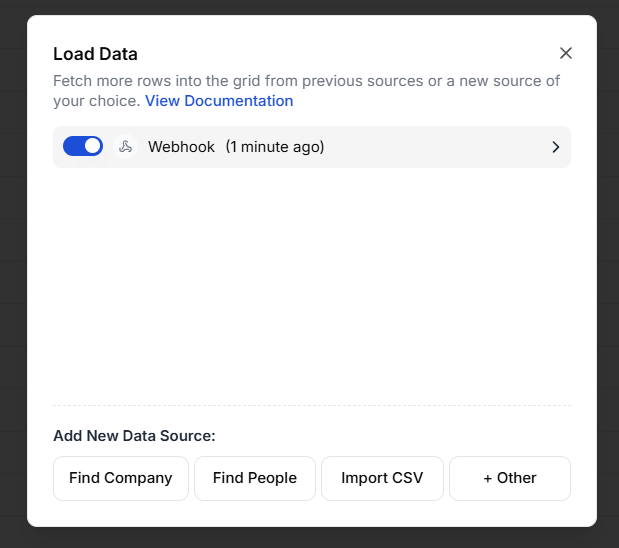
2. Click **Load data**
3. Select the **Webhook** source you created
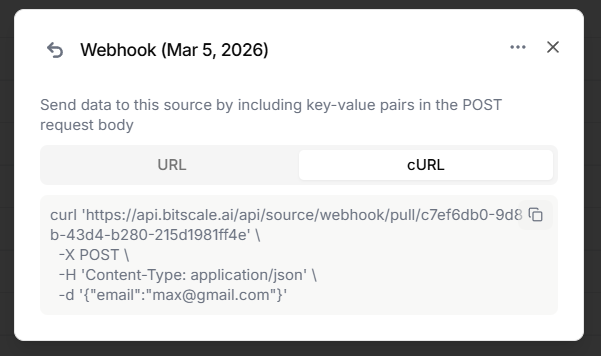
You will see:
* the webhook **URL**
* a ready-to-use **cURL command**
## Push data from another platform
If you are using tools like outbound platforms or alert systems:
1. Copy the webhook **URL** from Bitscale
2. Paste it into the other platform’s webhook field
3. Send test data
That is usually enough to start receiving rows.
## Push data from your internal system
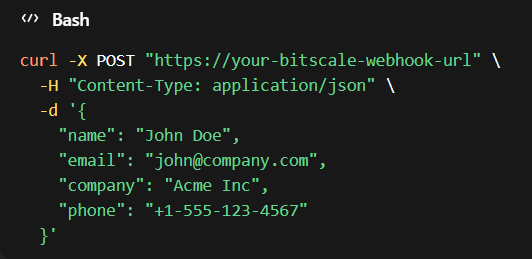
If you are pushing from your own backend or scripts, use the cURL command as a reference.
You mainly need to update the payload so it includes the fields you want to send as **key-value pairs**.
Example fields you might send:
* first name
* company
* phone number
The structure stays the same, you just add more keys and their values.
## See the data inside Bitscale
After sending a payload:
1. Go back to your grid
2. Reload the data source if needed
3. Open the webhook source
You can now create new columns using the keys you sent.
For example, if your payload included:
* `email`
* `name`
You can:
* create an **Email** column
* create a **Name** column
Bitscale auto-populates the values for those columns from the webhook payload.
## Common use cases
### Automated re-enrichment workflows
Send account or contact records into Bitscale on a schedule or trigger, then run enrichment steps automatically.
### Bitscale as a workflow middle layer
Push events from another system into Bitscale, enrich them, then route the output to other tools.
Try Bitscale Now!
## Need help?
If you have questions about webhook inputs or setting up your workflow, reach out on the community channel anytime.
 1. Click **New grid**
2. Select **Import data from Webhook**
3. Click **Create new grid**
This creates a grid where incoming webhook payloads become rows you can work with.
## Find your webhook URL and cURL request
1. Open the grid you just created
2. Click **Load data**
3. Select the **Webhook** source you created
1. Click **New grid**
2. Select **Import data from Webhook**
3. Click **Create new grid**
This creates a grid where incoming webhook payloads become rows you can work with.
## Find your webhook URL and cURL request
1. Open the grid you just created
2. Click **Load data**
3. Select the **Webhook** source you created
 You will see:
* the webhook **URL**
* a ready-to-use **cURL command**
You will see:
* the webhook **URL**
* a ready-to-use **cURL command**
 ## Push data from another platform
If you are using tools like outbound platforms or alert systems:
1. Copy the webhook **URL** from Bitscale
2. Paste it into the other platform’s webhook field
3. Send test data
That is usually enough to start receiving rows.
## Push data from your internal system
If you are pushing from your own backend or scripts, use the cURL command as a reference.
## Push data from another platform
If you are using tools like outbound platforms or alert systems:
1. Copy the webhook **URL** from Bitscale
2. Paste it into the other platform’s webhook field
3. Send test data
That is usually enough to start receiving rows.
## Push data from your internal system
If you are pushing from your own backend or scripts, use the cURL command as a reference.
 You mainly need to update the payload so it includes the fields you want to send as **key-value pairs**.
Example fields you might send:
* first name
* company
* phone number
The structure stays the same, you just add more keys and their values.
## See the data inside Bitscale
After sending a payload:
1. Go back to your grid
2. Reload the data source if needed
3. Open the webhook source
You can now create new columns using the keys you sent.
For example, if your payload included:
* `email`
* `name`
You can:
* create an **Email** column
* create a **Name** column
Bitscale auto-populates the values for those columns from the webhook payload.
## Common use cases
### Automated re-enrichment workflows
Send account or contact records into Bitscale on a schedule or trigger, then run enrichment steps automatically.
### Bitscale as a workflow middle layer
Push events from another system into Bitscale, enrich them, then route the output to other tools.
You mainly need to update the payload so it includes the fields you want to send as **key-value pairs**.
Example fields you might send:
* first name
* company
* phone number
The structure stays the same, you just add more keys and their values.
## See the data inside Bitscale
After sending a payload:
1. Go back to your grid
2. Reload the data source if needed
3. Open the webhook source
You can now create new columns using the keys you sent.
For example, if your payload included:
* `email`
* `name`
You can:
* create an **Email** column
* create a **Name** column
Bitscale auto-populates the values for those columns from the webhook payload.
## Common use cases
### Automated re-enrichment workflows
Send account or contact records into Bitscale on a schedule or trigger, then run enrichment steps automatically.
### Bitscale as a workflow middle layer
Push events from another system into Bitscale, enrich them, then route the output to other tools.