> ## Documentation Index
> Fetch the complete documentation index at: https://docs.bitscale.ai/llms.txt
> Use this file to discover all available pages before exploring further.
# Research - BitAgent
> Use BitAgent to scrape live websites and conduct structured market research. Configure prompts, apply output formatting (fields or lists), and enrich workflows with reliable, contextual company insights.
***
## Overview
**BitAgent** is Bitscale’s unique research agent designed for **live website scraping** and **market research**. It performs structured scrapes of a company’s website, and if the data is unavailable there, it automatically checks other sources such as Google Web Search.
BitAgent is widely used for:
* **Primary research** in customized outreach workflows
* Detecting website changes or signals (e.g., compliance, certifications)
* Extracting structured data like **event attendees**
* Enriching accounts with deeper context for personalization
***
### **When to Use BitAgent**
* Use **BitAgent** when you need **in-depth, company-specific insights**.
* Use **Google Web Search, Google News, or Perplexity agents** when you need broad, surface-level research across multiple sources.
***
### **Setting Up BitAgent**
1. Go to the **Enrichments Tab → Web Search → BitAgent**.
2. Provide an input:
* **Preferred**: Company URL
* **Alternative**: A direct link to the page you want scraped (e.g., an event attendee list).
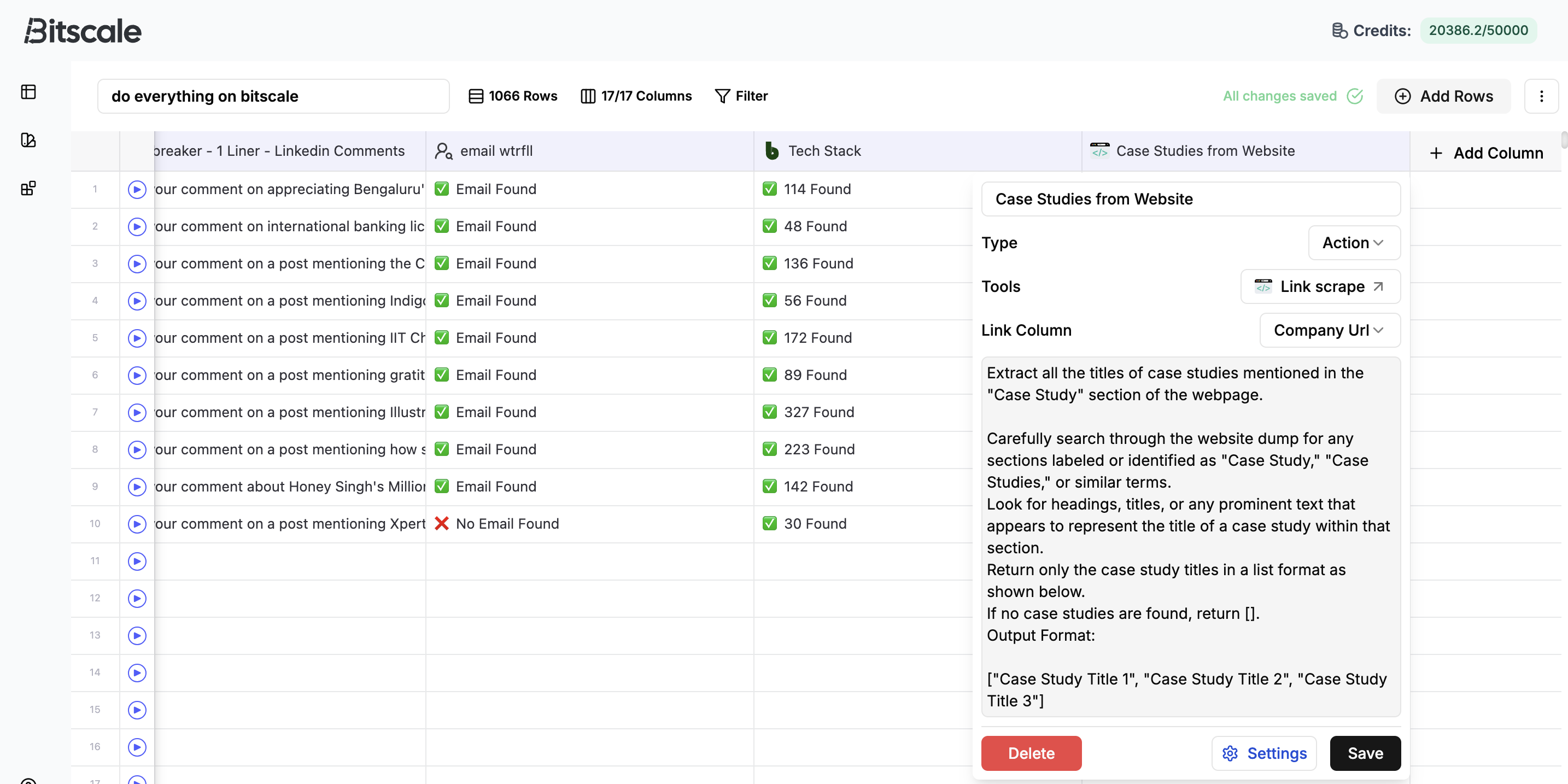
3. Add a **prompt**:
* Example: *“Check if the company is SOC2 validated.”*
***
### **Output Formatting**
Proper output formatting ensures that responses are structured and usable in downstream workflows. Without formatting, the AI may return unstructured text, which can break dependent steps.
Two formatting types are supported:
* **Fields**:
* Used for single-value or comma-separated responses.
* Example: `name` field with 10 names, `company` field with 10 companies (each comma separated).
* **Lists**:
* Used when you want **row-level encapsulation** for each item.
* Example: `{name, company}` for each attendee, output as multiple structured records.
> 💡 Use **Fields** when you need flat responses, and **Lists** when you plan to **explode results into multiple rows** in another grid.
***
### **Example: Event Attendees**
* **Fields Output**:
* `name`: John, Sarah, Priya
* `company`: Acme, Globex, Initech
* **Lists Output**:
* `{name: John, company: Acme}`
* `{name: Sarah, company: Globex}`
* `{name: Priya, company: Initech}`
Lists are recommended when the output will be mapped into grids for further enrichment.
***
### **Adding Results to Columns**
* After running BitAgent, add the structured output as a **column** in your grid.
* Example: Column `is_soc_validated` with boolean values `True/False`.
* Supported output types: **Text**, **True/False**, **Numbers**, etc.
***
### **Best Practices**
* Always provide a **clear and concise prompt** (20–30 words).
* Use **structured output formatting** to avoid dependency errors.
* For **boolean checks** (e.g., “Is SOC2 validated?”), use **True/False type** for accuracy.
* For **bulk lists** (e.g., event attendees), always use the **List** option.
 ***
### **When to Use BitAgent**
* Use **BitAgent** when you need **in-depth, company-specific insights**.
* Use **Google Web Search, Google News, or Perplexity agents** when you need broad, surface-level research across multiple sources.
***
### **Setting Up BitAgent**
1. Go to the **Enrichments Tab → Web Search → BitAgent**.
2. Provide an input:
* **Preferred**: Company URL
* **Alternative**: A direct link to the page you want scraped (e.g., an event attendee list).
3. Add a **prompt**:
* Example: *“Check if the company is SOC2 validated.”*
***
### **Output Formatting**
Proper output formatting ensures that responses are structured and usable in downstream workflows. Without formatting, the AI may return unstructured text, which can break dependent steps.
Two formatting types are supported:
* **Fields**:
* Used for single-value or comma-separated responses.
* Example: `name` field with 10 names, `company` field with 10 companies (each comma separated).
* **Lists**:
* Used when you want **row-level encapsulation** for each item.
* Example: `{name, company}` for each attendee, output as multiple structured records.
> 💡 Use **Fields** when you need flat responses, and **Lists** when you plan to **explode results into multiple rows** in another grid.
***
### **Example: Event Attendees**
* **Fields Output**:
* `name`: John, Sarah, Priya
* `company`: Acme, Globex, Initech
* **Lists Output**:
* `{name: John, company: Acme}`
* `{name: Sarah, company: Globex}`
* `{name: Priya, company: Initech}`
Lists are recommended when the output will be mapped into grids for further enrichment.
***
### **Adding Results to Columns**
* After running BitAgent, add the structured output as a **column** in your grid.
* Example: Column `is_soc_validated` with boolean values `True/False`.
* Supported output types: **Text**, **True/False**, **Numbers**, etc.
***
### **Best Practices**
* Always provide a **clear and concise prompt** (20–30 words).
* Use **structured output formatting** to avoid dependency errors.
* For **boolean checks** (e.g., “Is SOC2 validated?”), use **True/False type** for accuracy.
* For **bulk lists** (e.g., event attendees), always use the **List** option.
***
### **When to Use BitAgent**
* Use **BitAgent** when you need **in-depth, company-specific insights**.
* Use **Google Web Search, Google News, or Perplexity agents** when you need broad, surface-level research across multiple sources.
***
### **Setting Up BitAgent**
1. Go to the **Enrichments Tab → Web Search → BitAgent**.
2. Provide an input:
* **Preferred**: Company URL
* **Alternative**: A direct link to the page you want scraped (e.g., an event attendee list).
3. Add a **prompt**:
* Example: *“Check if the company is SOC2 validated.”*
***
### **Output Formatting**
Proper output formatting ensures that responses are structured and usable in downstream workflows. Without formatting, the AI may return unstructured text, which can break dependent steps.
Two formatting types are supported:
* **Fields**:
* Used for single-value or comma-separated responses.
* Example: `name` field with 10 names, `company` field with 10 companies (each comma separated).
* **Lists**:
* Used when you want **row-level encapsulation** for each item.
* Example: `{name, company}` for each attendee, output as multiple structured records.
> 💡 Use **Fields** when you need flat responses, and **Lists** when you plan to **explode results into multiple rows** in another grid.
***
### **Example: Event Attendees**
* **Fields Output**:
* `name`: John, Sarah, Priya
* `company`: Acme, Globex, Initech
* **Lists Output**:
* `{name: John, company: Acme}`
* `{name: Sarah, company: Globex}`
* `{name: Priya, company: Initech}`
Lists are recommended when the output will be mapped into grids for further enrichment.
***
### **Adding Results to Columns**
* After running BitAgent, add the structured output as a **column** in your grid.
* Example: Column `is_soc_validated` with boolean values `True/False`.
* Supported output types: **Text**, **True/False**, **Numbers**, etc.
***
### **Best Practices**
* Always provide a **clear and concise prompt** (20–30 words).
* Use **structured output formatting** to avoid dependency errors.
* For **boolean checks** (e.g., “Is SOC2 validated?”), use **True/False type** for accuracy.
* For **bulk lists** (e.g., event attendees), always use the **List** option.