> ## Documentation Index
> Fetch the complete documentation index at: https://docs.bitscale.ai/llms.txt
> Use this file to discover all available pages before exploring further.
# Set up Round Robin Assignment inside Grids
Try Bitscale Now!
## What Round Robin in Grids does
Round Robin lets you automatically assign rows in a grid across a list of owners.
This is useful when you are using Bitscale as your SDR workspace to:
* find leads
* enrich data
* pull emails and phone numbers
* qualify leads based on your ICP templates
* start outreach
Earlier, teams had to push leads into their CRM just to run assignment. That extra step adds friction. Round Robin inside grids removes that step.
## Set up a Round Robin
1. Open the grid you want to assign rows in.
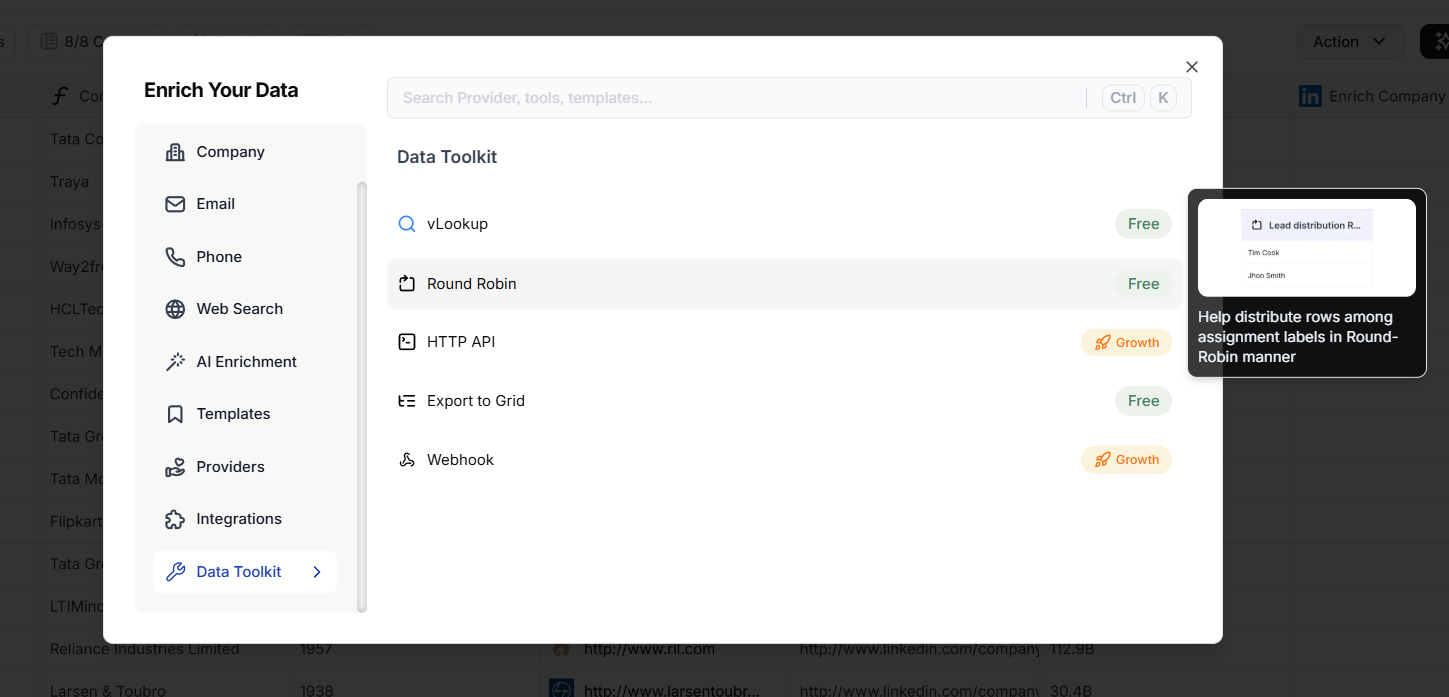
2. Go to **Enrichment → Data Toolkit**.
3. Click **Round Robin**.
4. Add your assignment values.
* Example: add SDR names like `SDR_A`, `SDR_B`, `AE_Enterprise`
5. Click **Save**.
That is it. You do not need anything else to get started.
## Optional: use CRM Owner IDs or Label IDs
If your CRM uses Owner IDs or Label IDs, you can assign using those values instead of names.
1. Copy the list of Owner IDs or Label IDs from your CRM.
2. Paste them into the Round Robin list.
3. Save.
This helps when you want the assigned value to map directly to a CRM owner later.
## Run the Round Robin for your grid
After saving the list:
1. Run it for **all rows**.
2. Bitscale assigns one of the available values to each row using a round robin pattern.
Try it in your workspace
## Common use cases
### 1) SDR lead distribution inside Bitscale
Use Round Robin to assign qualified leads across your SDR team right inside the grid, before any CRM push.
### 2) Push assigned rows to the right CRM owner
If you used CRM Owner IDs in the assignment list, you can push rows to your CRM and keep ownership consistent.
### 3) Route updates to Slack by owner
You can build Slack logic where:
* each owner has a dedicated channel
* messages get routed based on who the row was assigned to
This works well if your current Slack setup uses a predefined list of channels for Bitscale-to-Slack updates.
## Need help?
If you have questions, reach out on the support channel and the team will help you set it up.
 4. Add your assignment values.
* Example: add SDR names like `SDR_A`, `SDR_B`, `AE_Enterprise`
5. Click **Save**.
That is it. You do not need anything else to get started.
## Optional: use CRM Owner IDs or Label IDs
If your CRM uses Owner IDs or Label IDs, you can assign using those values instead of names.
1. Copy the list of Owner IDs or Label IDs from your CRM.
2. Paste them into the Round Robin list.
3. Save.
This helps when you want the assigned value to map directly to a CRM owner later.
## Run the Round Robin for your grid
After saving the list:
1. Run it for **all rows**.
2. Bitscale assigns one of the available values to each row using a round robin pattern.
4. Add your assignment values.
* Example: add SDR names like `SDR_A`, `SDR_B`, `AE_Enterprise`
5. Click **Save**.
That is it. You do not need anything else to get started.
## Optional: use CRM Owner IDs or Label IDs
If your CRM uses Owner IDs or Label IDs, you can assign using those values instead of names.
1. Copy the list of Owner IDs or Label IDs from your CRM.
2. Paste them into the Round Robin list.
3. Save.
This helps when you want the assigned value to map directly to a CRM owner later.
## Run the Round Robin for your grid
After saving the list:
1. Run it for **all rows**.
2. Bitscale assigns one of the available values to each row using a round robin pattern.