> ## Documentation Index
> Fetch the complete documentation index at: https://docs.bitscale.ai/llms.txt
> Use this file to discover all available pages before exploring further.
# List Building - Find Companies
> Learn how to create grids and use Bitscale’s Find Companies tool to identify and experiment with leads that align with your ICP.
## **Discovering Companies That Match Your ICP**
Creating lead lists tailored to your Ideal Customer Profile (ICP) is the first step to effective outreach. Bitscale makes this process seamless by offering a variety of tools to build and experiment with grids. Whether you already know your ICP or are exploring new criteria to refine it, Bitscale’s **Find Companies** feature helps you identify the right prospects efficiently.
With this tool, you can:
* Build grids to target companies that meet specific filters.
* Experiment with different ICP criteria to discover what works best.
* Kickstart your lead generation process with high-quality data.
***
## **How to Get Started**
### **1. Create a New Grid**
After logging into the platform, click on **Create New Grid** to begin. You’ll see various options for how to bring leads into Bitscale:
* **Blank Canvas:** Start fresh and build manually.
* **From Other Platforms:** Import leads from CRMs or tools like Sales Navigator.
* **Bitscale’s Find Companies Tool:** Use Bitscale’s built-in offering to discover companies that match your filters.
For this demonstration, we’ll use the **Find Companies** option.
***
### **2. Apply Filters to Define Your ICP**
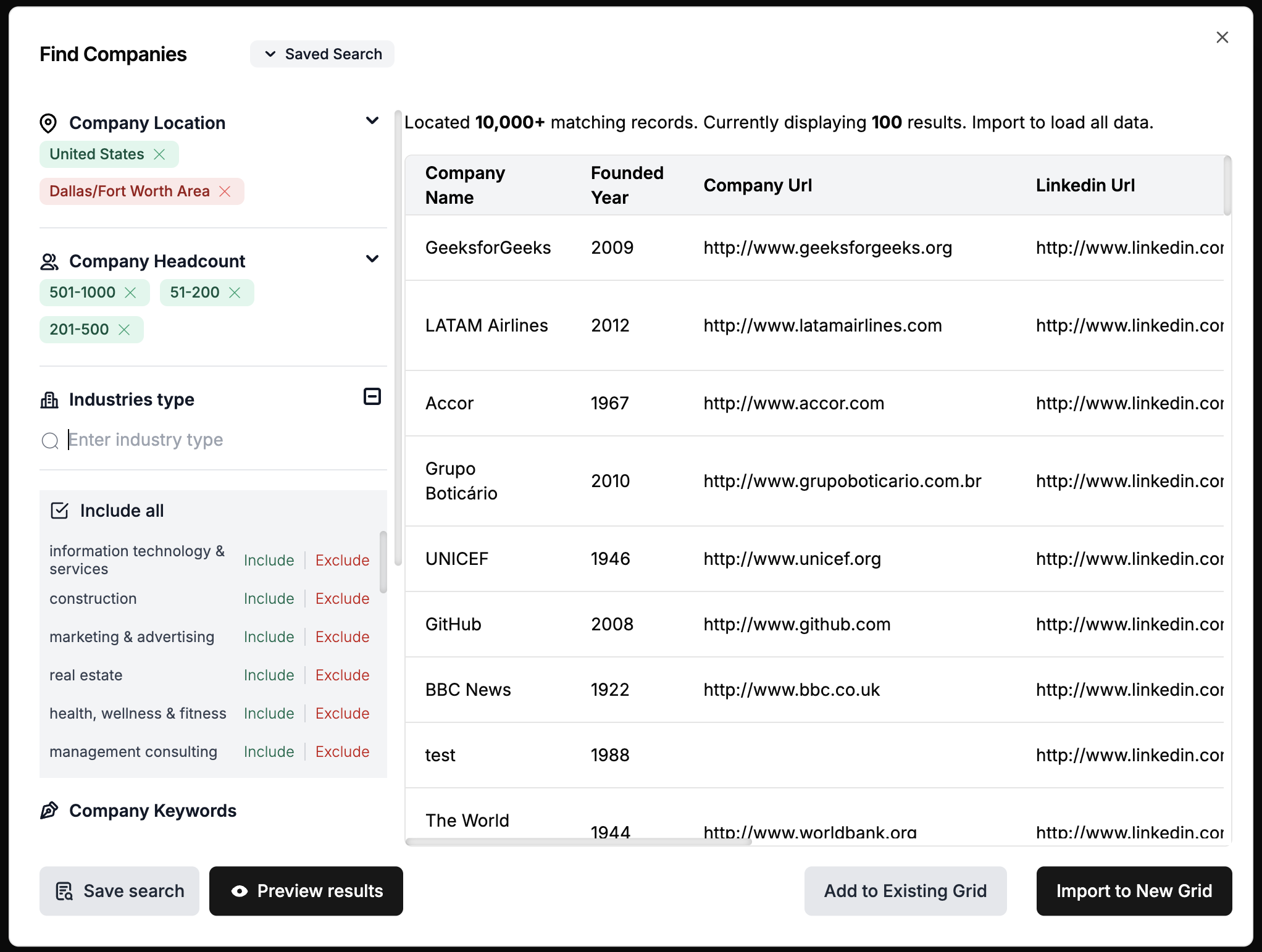
The Find Companies tool provides multiple filters to help you zero in on the companies you want to target. Here’s an example:
* **Location:** Target companies based in the **United States**.
* **Industry:** Keep it broad by leaving this filter blank for industry-agnostic results.
* **Revenue Range:** Add a range, such as **$5M to $10M**, to narrow down to mid-size companies.
* **Funding Stage:** Focus on companies at **Series A** to align with your outreach goals.
These filters allow you to either follow a predefined ICP or experiment to discover the best fit.
***
### **3. Preview and Review Results**
Once you’ve set your filters, preview the results to see the list of matching companies.
* **Sample Records:** View a sample of 100 companies out of the full list (e.g., 1,317 matching records).
* **Details Provided:** Each record includes essential information such as:
* **Company Name**
* **Company Website**
* **Social Handles** (LinkedIn, Twitter, Facebook)
**Why This Matters:** The preview gives you an overview of your leads and helps confirm that your filters are working as intended.
***
### **4. Next Steps: Enrichment**
The initial list is just the starting point. After building your grid, you can enrich your data further to:
* Identify **key decision-makers** at these companies.
* Qualify or classify companies based on additional criteria.
* Fetch verified contact details to prepare for outreach.
Bitscale’s lead enrichment tools make it easy to take your list to the next level.
***
## **Key Benefits of Find Companies on Bitscale**
* **Flexibility:** Apply specific filters or experiment to refine your ICP dynamically.
* **Efficiency:** Quickly fetch thousands of matching companies with minimal effort.
* **Scalability:** Start with high-quality data and seamlessly move into enrichment workflows.
***
**Pro Tip:** Use the preview feature to fine-tune your filters before finalizing your lead list—it saves time and ensures accuracy!
 After logging into the platform, click on **Create New Grid** to begin. You’ll see various options for how to bring leads into Bitscale:
* **Blank Canvas:** Start fresh and build manually.
* **From Other Platforms:** Import leads from CRMs or tools like Sales Navigator.
* **Bitscale’s Find Companies Tool:** Use Bitscale’s built-in offering to discover companies that match your filters.
For this demonstration, we’ll use the **Find Companies** option.
***
### **2. Apply Filters to Define Your ICP**
The Find Companies tool provides multiple filters to help you zero in on the companies you want to target. Here’s an example:
* **Location:** Target companies based in the **United States**.
* **Industry:** Keep it broad by leaving this filter blank for industry-agnostic results.
* **Revenue Range:** Add a range, such as **$5M to $10M**, to narrow down to mid-size companies.
* **Funding Stage:** Focus on companies at **Series A** to align with your outreach goals.
These filters allow you to either follow a predefined ICP or experiment to discover the best fit.
***
### **3. Preview and Review Results**
Once you’ve set your filters, preview the results to see the list of matching companies.
* **Sample Records:** View a sample of 100 companies out of the full list (e.g., 1,317 matching records).
* **Details Provided:** Each record includes essential information such as:
* **Company Name**
* **Company Website**
* **Social Handles** (LinkedIn, Twitter, Facebook)
**Why This Matters:** The preview gives you an overview of your leads and helps confirm that your filters are working as intended.
***
### **4. Next Steps: Enrichment**
The initial list is just the starting point. After building your grid, you can enrich your data further to:
* Identify **key decision-makers** at these companies.
* Qualify or classify companies based on additional criteria.
* Fetch verified contact details to prepare for outreach.
Bitscale’s lead enrichment tools make it easy to take your list to the next level.
***
## **Key Benefits of Find Companies on Bitscale**
* **Flexibility:** Apply specific filters or experiment to refine your ICP dynamically.
* **Efficiency:** Quickly fetch thousands of matching companies with minimal effort.
* **Scalability:** Start with high-quality data and seamlessly move into enrichment workflows.
***
**Pro Tip:** Use the preview feature to fine-tune your filters before finalizing your lead list—it saves time and ensures accuracy!
After logging into the platform, click on **Create New Grid** to begin. You’ll see various options for how to bring leads into Bitscale:
* **Blank Canvas:** Start fresh and build manually.
* **From Other Platforms:** Import leads from CRMs or tools like Sales Navigator.
* **Bitscale’s Find Companies Tool:** Use Bitscale’s built-in offering to discover companies that match your filters.
For this demonstration, we’ll use the **Find Companies** option.
***
### **2. Apply Filters to Define Your ICP**
The Find Companies tool provides multiple filters to help you zero in on the companies you want to target. Here’s an example:
* **Location:** Target companies based in the **United States**.
* **Industry:** Keep it broad by leaving this filter blank for industry-agnostic results.
* **Revenue Range:** Add a range, such as **$5M to $10M**, to narrow down to mid-size companies.
* **Funding Stage:** Focus on companies at **Series A** to align with your outreach goals.
These filters allow you to either follow a predefined ICP or experiment to discover the best fit.
***
### **3. Preview and Review Results**
Once you’ve set your filters, preview the results to see the list of matching companies.
* **Sample Records:** View a sample of 100 companies out of the full list (e.g., 1,317 matching records).
* **Details Provided:** Each record includes essential information such as:
* **Company Name**
* **Company Website**
* **Social Handles** (LinkedIn, Twitter, Facebook)
**Why This Matters:** The preview gives you an overview of your leads and helps confirm that your filters are working as intended.
***
### **4. Next Steps: Enrichment**
The initial list is just the starting point. After building your grid, you can enrich your data further to:
* Identify **key decision-makers** at these companies.
* Qualify or classify companies based on additional criteria.
* Fetch verified contact details to prepare for outreach.
Bitscale’s lead enrichment tools make it easy to take your list to the next level.
***
## **Key Benefits of Find Companies on Bitscale**
* **Flexibility:** Apply specific filters or experiment to refine your ICP dynamically.
* **Efficiency:** Quickly fetch thousands of matching companies with minimal effort.
* **Scalability:** Start with high-quality data and seamlessly move into enrichment workflows.
***
**Pro Tip:** Use the preview feature to fine-tune your filters before finalizing your lead list—it saves time and ensures accuracy!