> ## Documentation Index
> Fetch the complete documentation index at: https://docs.bitscale.ai/llms.txt
> Use this file to discover all available pages before exploring further.
# Connect HubSpot to Bitscale
Last Updated At: Mar 2026
Try Bitscale Now!
## What this integration enables
Bitscale has a robust HubSpot integration that lets you:
* pull HubSpot **companies** and **contacts** into grids
* run complex queries directly from Bitscale
* enrich missing fields (like industry or city)
* push updates back into HubSpot
* automate the whole loop for ongoing CRM cleanup and re-enrichment
## Step 1: Connect your HubSpot account
1. On Home Page, go to **Integrations -> Add integration**
3. Select **HubSpot**
4. Click **Connect HubSpot**
5. Complete the login on the integration bridge
## Step 2: Pull HubSpot data into a grid
Once HubSpot is connected, go to **New grid**.
You will see three HubSpot import options:
* **Import companies from HubSpot**
* **Import contacts from HubSpot**
* **Import HubSpot lists** (covered in a separate guide)
This doc covers company and contact imports.
### Import companies from HubSpot
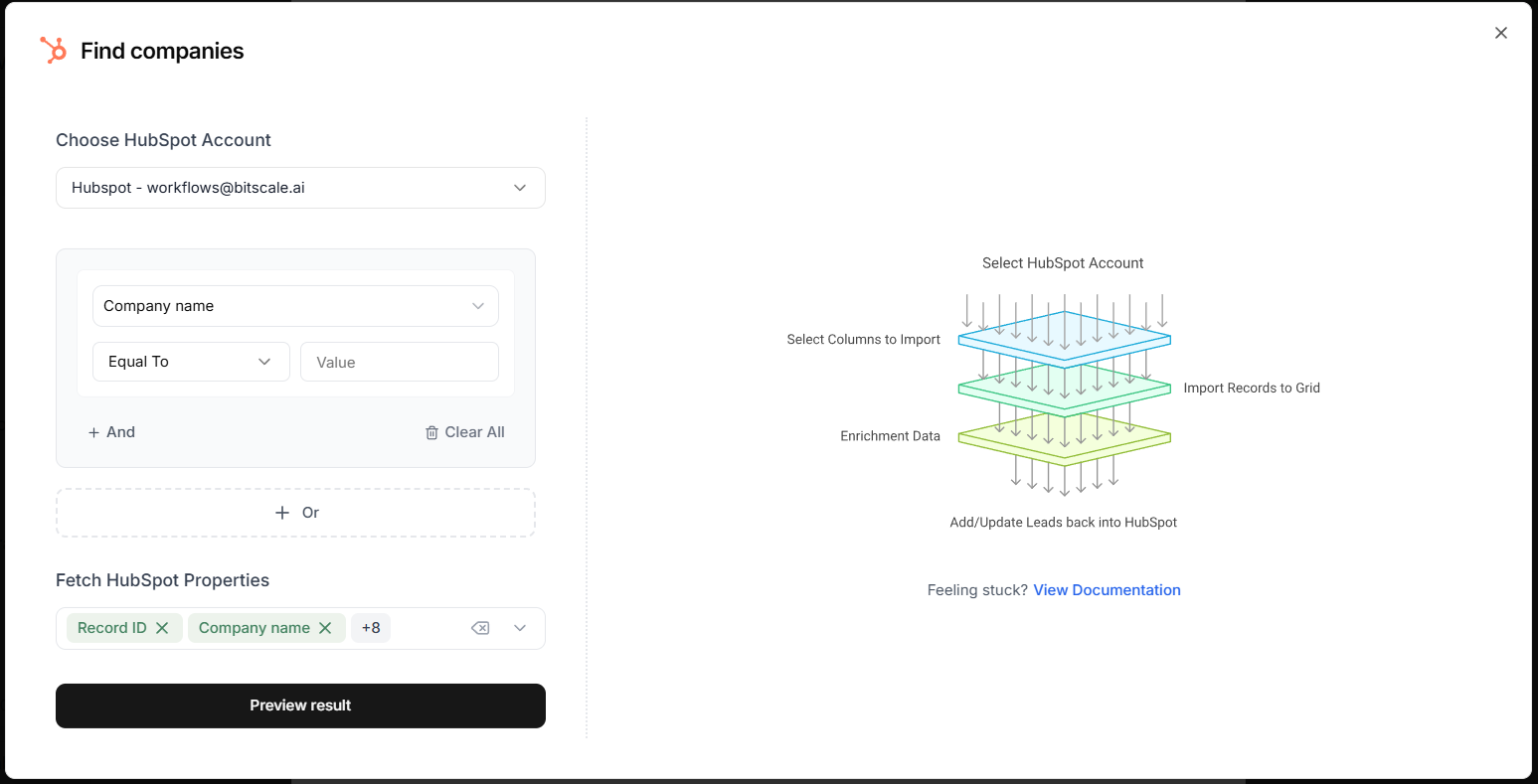
1. Click **New grid → Import companies from HubSpot**
2. Select the HubSpot account
3. Build your filters using HubSpot properties
You can create complex queries using:
* AND conditions
* OR conditions
Example: **Website URL is not empty**
### Choose which properties to pull
You can also select which HubSpot properties you want included in the grid.
* A preset set of properties is available by default
* You can add more properties if you need them
4. Click **Preview results**
5. Click **Import to new grid**
Now your HubSpot company records (and record IDs) are available inside Bitscale.
### What you can do next
After importing companies, you can:
* route them into a specific workflow (ABM, outbound, enrichment)
* clean CRM fields
* enrich missing values and push them back to HubSpot
## Step 3: Look up additional HubSpot fields inside the grid
Sometimes you may want to fetch a property you did not pull initially, or you want data from related objects.
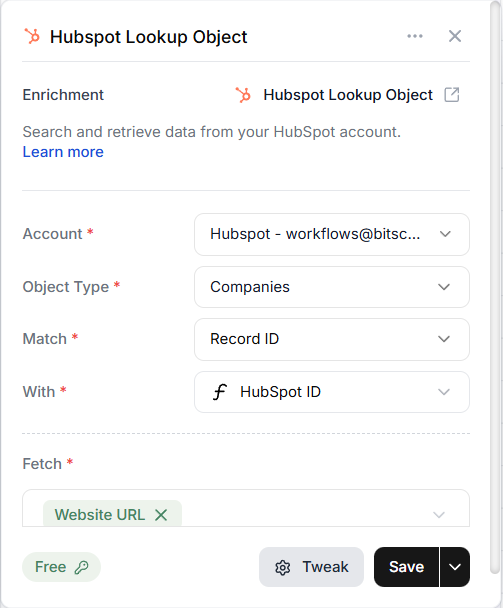
For that, use HubSpot lookup inside the grid:
1. Go to **Enrichment -> Integrations**
2. Select **HubSpot Lookup Object**
Then:
1. Select your HubSpot account
2. Choose the **Object type** (example: Companies)
3. Match:
* the grid’s record ID column
* with the HubSpot ID column in the grid
4. Select the property you want to fetch
5. Save and run
After the run, you can add the returned field as a new column.
## Step 4: Enrich missing data and update HubSpot
If you notice missing fields in HubSpot (example: industry, city), you can enrich them in Bitscale and push them back.
### 1) Enrich the missing value in Bitscale
1. Go to **Enrichments**
2. Use a **company enrichment** (example: basic Enrich Company)
3. Run it for a test row (or the full grid once you are confident)
### 2) Push the update back to HubSpot
1. Go to **Enrichments → Integrations**
2. Select the **HubSpot** enrichment (not the lookup)
3. Configure:
* **Record type**: Company
* **Action**: Update record
* **Unique identifier**: Record ID (or company domain)
4. Click **Map fields**
5. Map the HubSpot field (example: Industry) to the enriched column value
6. Save and run
If the run succeeds, the field is updated in HubSpot.
## Automate this for continuous CRM cleanup
Once the workflow is working end-to-end, you can automate it:
* **Auto-fetch records** from HubSpot in **Load data**
* Set up **auto dedup** so the same accounts are not processed repeatedly
* Enable **auto run** so new records automatically get enriched and updated
This creates a repeatable system that keeps HubSpot clean and up to date.
## Contact-level workflow is identical
For contacts, the steps are the same:
1. Go to **New grid → Import contacts from HubSpot**
2. Query using HubSpot properties
3. Import to grid
4. Use:
* HubSpot lookup enrichment to fetch missing fields
* HubSpot enrichment to add or update records
Everything works the same way as the company workflow.
Try Bitscale Now!
## Need help?
If you want help setting up your HubSpot queries, update mappings, or an automated CRM cleanup workflow, reach out on the support channel.
 3. Select **HubSpot**
4. Click **Connect HubSpot**
5. Complete the login on the integration bridge
## Step 2: Pull HubSpot data into a grid
Once HubSpot is connected, go to **New grid**.
You will see three HubSpot import options:
* **Import companies from HubSpot**
* **Import contacts from HubSpot**
* **Import HubSpot lists** (covered in a separate guide)
This doc covers company and contact imports.
### Import companies from HubSpot
1. Click **New grid → Import companies from HubSpot**
2. Select the HubSpot account
3. Build your filters using HubSpot properties
3. Select **HubSpot**
4. Click **Connect HubSpot**
5. Complete the login on the integration bridge
## Step 2: Pull HubSpot data into a grid
Once HubSpot is connected, go to **New grid**.
You will see three HubSpot import options:
* **Import companies from HubSpot**
* **Import contacts from HubSpot**
* **Import HubSpot lists** (covered in a separate guide)
This doc covers company and contact imports.
### Import companies from HubSpot
1. Click **New grid → Import companies from HubSpot**
2. Select the HubSpot account
3. Build your filters using HubSpot properties
 You can create complex queries using:
* AND conditions
* OR conditions
Example: **Website URL is not empty**
### Choose which properties to pull
You can also select which HubSpot properties you want included in the grid.
* A preset set of properties is available by default
* You can add more properties if you need them
4. Click **Preview results**
5. Click **Import to new grid**
Now your HubSpot company records (and record IDs) are available inside Bitscale.
### What you can do next
After importing companies, you can:
* route them into a specific workflow (ABM, outbound, enrichment)
* clean CRM fields
* enrich missing values and push them back to HubSpot
## Step 3: Look up additional HubSpot fields inside the grid
Sometimes you may want to fetch a property you did not pull initially, or you want data from related objects.
For that, use HubSpot lookup inside the grid:
1. Go to **Enrichment -> Integrations**
2. Select **HubSpot Lookup Object**
You can create complex queries using:
* AND conditions
* OR conditions
Example: **Website URL is not empty**
### Choose which properties to pull
You can also select which HubSpot properties you want included in the grid.
* A preset set of properties is available by default
* You can add more properties if you need them
4. Click **Preview results**
5. Click **Import to new grid**
Now your HubSpot company records (and record IDs) are available inside Bitscale.
### What you can do next
After importing companies, you can:
* route them into a specific workflow (ABM, outbound, enrichment)
* clean CRM fields
* enrich missing values and push them back to HubSpot
## Step 3: Look up additional HubSpot fields inside the grid
Sometimes you may want to fetch a property you did not pull initially, or you want data from related objects.
For that, use HubSpot lookup inside the grid:
1. Go to **Enrichment -> Integrations**
2. Select **HubSpot Lookup Object**
 Then:
1. Select your HubSpot account
2. Choose the **Object type** (example: Companies)
3. Match:
* the grid’s record ID column
* with the HubSpot ID column in the grid
4. Select the property you want to fetch
5. Save and run
After the run, you can add the returned field as a new column.
## Step 4: Enrich missing data and update HubSpot
If you notice missing fields in HubSpot (example: industry, city), you can enrich them in Bitscale and push them back.
### 1) Enrich the missing value in Bitscale
1. Go to **Enrichments**
2. Use a **company enrichment** (example: basic Enrich Company)
3. Run it for a test row (or the full grid once you are confident)
### 2) Push the update back to HubSpot
1. Go to **Enrichments → Integrations**
2. Select the **HubSpot** enrichment (not the lookup)
Then:
1. Select your HubSpot account
2. Choose the **Object type** (example: Companies)
3. Match:
* the grid’s record ID column
* with the HubSpot ID column in the grid
4. Select the property you want to fetch
5. Save and run
After the run, you can add the returned field as a new column.
## Step 4: Enrich missing data and update HubSpot
If you notice missing fields in HubSpot (example: industry, city), you can enrich them in Bitscale and push them back.
### 1) Enrich the missing value in Bitscale
1. Go to **Enrichments**
2. Use a **company enrichment** (example: basic Enrich Company)
3. Run it for a test row (or the full grid once you are confident)
### 2) Push the update back to HubSpot
1. Go to **Enrichments → Integrations**
2. Select the **HubSpot** enrichment (not the lookup)
 3. Configure:
* **Record type**: Company
* **Action**: Update record
* **Unique identifier**: Record ID (or company domain)
4. Click **Map fields**
5. Map the HubSpot field (example: Industry) to the enriched column value
6. Save and run
If the run succeeds, the field is updated in HubSpot.
## Automate this for continuous CRM cleanup
Once the workflow is working end-to-end, you can automate it:
* **Auto-fetch records** from HubSpot in **Load data**
* Set up **auto dedup** so the same accounts are not processed repeatedly
* Enable **auto run** so new records automatically get enriched and updated
This creates a repeatable system that keeps HubSpot clean and up to date.
## Contact-level workflow is identical
For contacts, the steps are the same:
1. Go to **New grid → Import contacts from HubSpot**
2. Query using HubSpot properties
3. Import to grid
4. Use:
* HubSpot lookup enrichment to fetch missing fields
* HubSpot enrichment to add or update records
Everything works the same way as the company workflow.
3. Configure:
* **Record type**: Company
* **Action**: Update record
* **Unique identifier**: Record ID (or company domain)
4. Click **Map fields**
5. Map the HubSpot field (example: Industry) to the enriched column value
6. Save and run
If the run succeeds, the field is updated in HubSpot.
## Automate this for continuous CRM cleanup
Once the workflow is working end-to-end, you can automate it:
* **Auto-fetch records** from HubSpot in **Load data**
* Set up **auto dedup** so the same accounts are not processed repeatedly
* Enable **auto run** so new records automatically get enriched and updated
This creates a repeatable system that keeps HubSpot clean and up to date.
## Contact-level workflow is identical
For contacts, the steps are the same:
1. Go to **New grid → Import contacts from HubSpot**
2. Query using HubSpot properties
3. Import to grid
4. Use:
* HubSpot lookup enrichment to fetch missing fields
* HubSpot enrichment to add or update records
Everything works the same way as the company workflow.