> ## Documentation Index
> Fetch the complete documentation index at: https://docs.bitscale.ai/llms.txt
> Use this file to discover all available pages before exploring further.
# BitAgent - Research Data at Scale
Try Bitscale Now!
## What Bit Agent is
Bit Agent is Bitscale’s AI research enrichment.
You give it a simple question, and it searches the public web to find the answer.
The key difference is that it also shows the steps it took and the sites it visited, so you can verify where the information came from.
## When to use it
Use Bit Agent when you want to find a specific data point across:
* multiple companies
* multiple people or personas
* multiple rows in a grid
This is especially useful when you want the same research question answered consistently for every row.
## Where to find Bit Agent
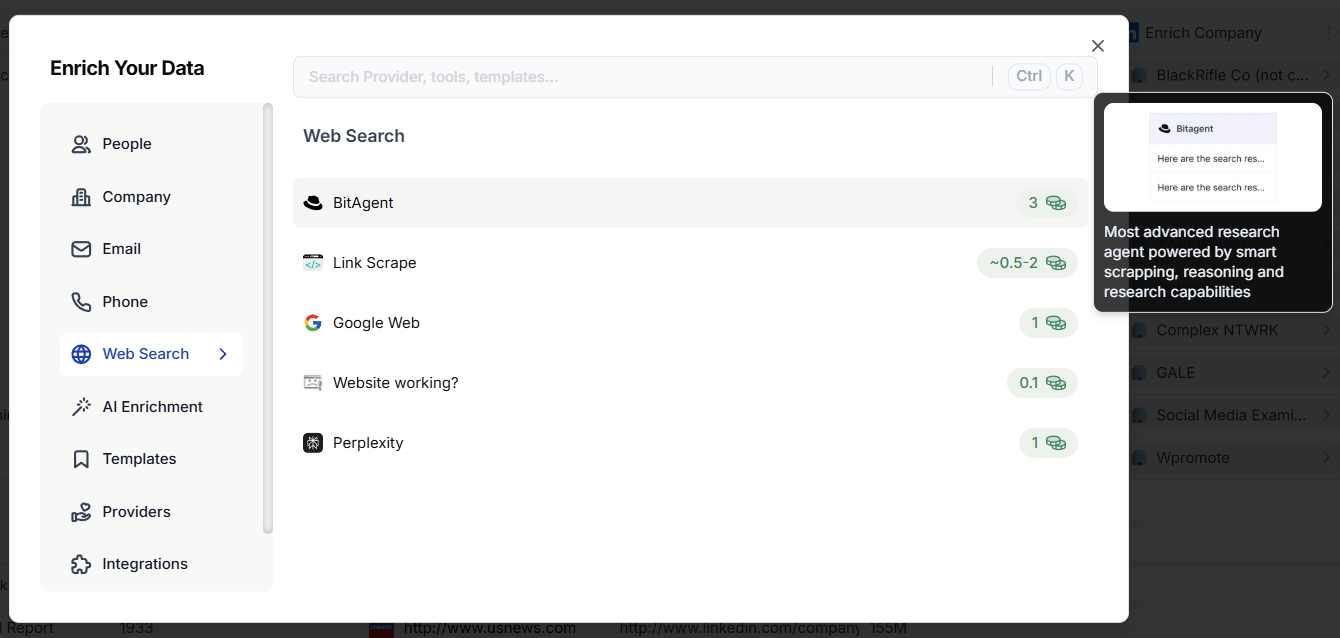
1. Open your grid
2. Go to **Enrichments**
3. Open **Web search**
4. Select **Bit Agent**
## Set up a Bit Agent enrichment
### 1) Write your ask
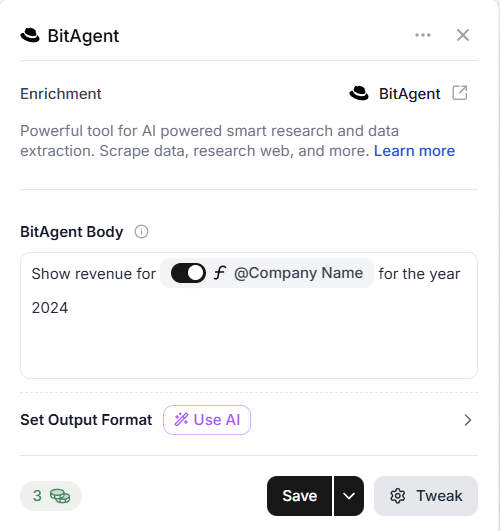
This is just the question you want Bit Agent to answer.
You can keep it extremely simple.
If your grid already has a relevant column, you can use it as a placeholder so the same prompt runs for every row.
### 2) Set an output format (recommended)
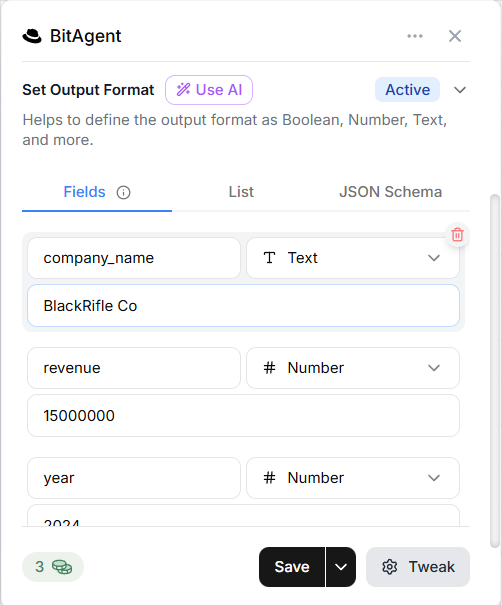
You can run Bit Agent without an output format, but it is better to define one so your results are structured and easy to use later.
To generate an output format quickly:
1. Click **Use AI**
2. Bitscale suggests the output fields based on your prompt
This makes it easier to use the result in later workflow steps.
### 3) Save and run
1. Click **Save**
2. Run it for the desired rows
## Verify results using the Steps view
When you open a response, you will see a section called **Steps**.
This shows:
* how Bit Agent found the answer
* the sources it visited during research
If Bit Agent cannot find confirmed information, it will not invent values.
## Use your own model with BYOK (Bring Your Own Key)
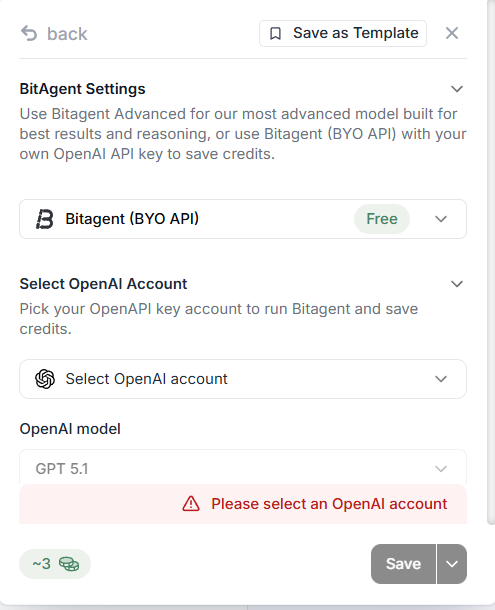
If you want to run Bit Agent using your own OpenAI or Claude subscription:
1. Go to **Bit Agent Advanced**
2. Click **Bit Agent Bring Your Own API**
3. Select an existing account, or click **Add account**
4. Add and verify your API key
5. Choose the model you want to use
After this, Bit Agent runs using your selected model instead of Bitscale’s internal setup.
## Best practices
* Write your ask in one simple sentence
* Use placeholders so the prompt scales across rows
* Always set an output format if you plan to automate anything after this step
* Test on the first 10 rows before running at scale
Try Bitscale Now!
## Need help?
If you have questions about prompts, output formats, or BYOK setup, reach out to the team on the support channel.
 ## Set up a Bit Agent enrichment
### 1) Write your ask
This is just the question you want Bit Agent to answer.
You can keep it extremely simple.
If your grid already has a relevant column, you can use it as a placeholder so the same prompt runs for every row.
## Set up a Bit Agent enrichment
### 1) Write your ask
This is just the question you want Bit Agent to answer.
You can keep it extremely simple.
If your grid already has a relevant column, you can use it as a placeholder so the same prompt runs for every row.
 ### 2) Set an output format (recommended)
You can run Bit Agent without an output format, but it is better to define one so your results are structured and easy to use later.
To generate an output format quickly:
1. Click **Use AI**
2. Bitscale suggests the output fields based on your prompt
This makes it easier to use the result in later workflow steps.
### 2) Set an output format (recommended)
You can run Bit Agent without an output format, but it is better to define one so your results are structured and easy to use later.
To generate an output format quickly:
1. Click **Use AI**
2. Bitscale suggests the output fields based on your prompt
This makes it easier to use the result in later workflow steps.
 ### 3) Save and run
1. Click **Save**
2. Run it for the desired rows
## Verify results using the Steps view
When you open a response, you will see a section called **Steps**.
This shows:
* how Bit Agent found the answer
* the sources it visited during research
If Bit Agent cannot find confirmed information, it will not invent values.
## Use your own model with BYOK (Bring Your Own Key)
If you want to run Bit Agent using your own OpenAI or Claude subscription:
### 3) Save and run
1. Click **Save**
2. Run it for the desired rows
## Verify results using the Steps view
When you open a response, you will see a section called **Steps**.
This shows:
* how Bit Agent found the answer
* the sources it visited during research
If Bit Agent cannot find confirmed information, it will not invent values.
## Use your own model with BYOK (Bring Your Own Key)
If you want to run Bit Agent using your own OpenAI or Claude subscription:
 1. Go to **Bit Agent Advanced**
2. Click **Bit Agent Bring Your Own API**
3. Select an existing account, or click **Add account**
4. Add and verify your API key
5. Choose the model you want to use
After this, Bit Agent runs using your selected model instead of Bitscale’s internal setup.
## Best practices
* Write your ask in one simple sentence
* Use placeholders so the prompt scales across rows
* Always set an output format if you plan to automate anything after this step
* Test on the first 10 rows before running at scale
1. Go to **Bit Agent Advanced**
2. Click **Bit Agent Bring Your Own API**
3. Select an existing account, or click **Add account**
4. Add and verify your API key
5. Choose the model you want to use
After this, Bit Agent runs using your selected model instead of Bitscale’s internal setup.
## Best practices
* Write your ask in one simple sentence
* Use placeholders so the prompt scales across rows
* Always set an output format if you plan to automate anything after this step
* Test on the first 10 rows before running at scale